Manage Manufacturers

Manage Manufacturers
The Manage Manufacturers page allows you to create, edit, and maintain manufacturer records that can be associated with items throughout the system. Manufacturers help standardize item data and enable consistent searching, filtering, and reporting.
Manufacturers are selected when creating or editing items and can be reused across multiple products.
Accessing Manufacturer Management
To access the Manage Manufacturers screen:
- From the top navigation bar, select Item.
- Click Manufacturers.
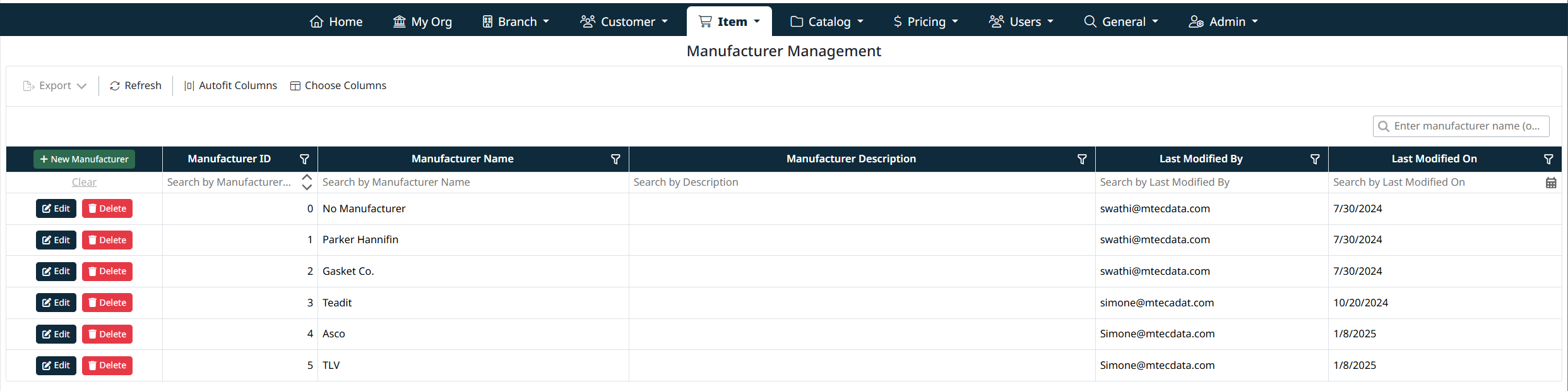
The Manufacturer Management screen will display, showing a grid of all existing manufacturers.

Manufacturer Management Grid
The Manufacturer Management grid displays all manufacturers currently configured in the system, including:
- Manufacturer ID
- Manufacturer Name
- Manufacturer Description
- Last Modified By
- Last Modified On
Each row includes action buttons to manage the manufacturer record.
For details on searching, filtering, sorting, exporting, and customizing columns, see Navigating Grids, Search, and Filters
Creating a New Manufacturer
To create a new manufacturer:
- Click + New Manufacturer.
- Enter the following information:
- Manufacturer Name
The name of the manufacturer (for example, Parker Hannifin). - Manufacturer Description (optional)
Additional descriptive information about the manufacturer.
- Click Save Manufacturer to create the record.
Click Cancel to discard changes.
Editing an Existing Manufacturer
To edit an existing manufacturer:
- Locate the manufacturer in the grid.
- Click Edit.
- Update the Manufacturer Name and/or Manufacturer Description as needed.
- Click Save Manufacturer to apply changes.

Deleting a Manufacturer
To delete a manufacturer:
- Locate the manufacturer in the grid.
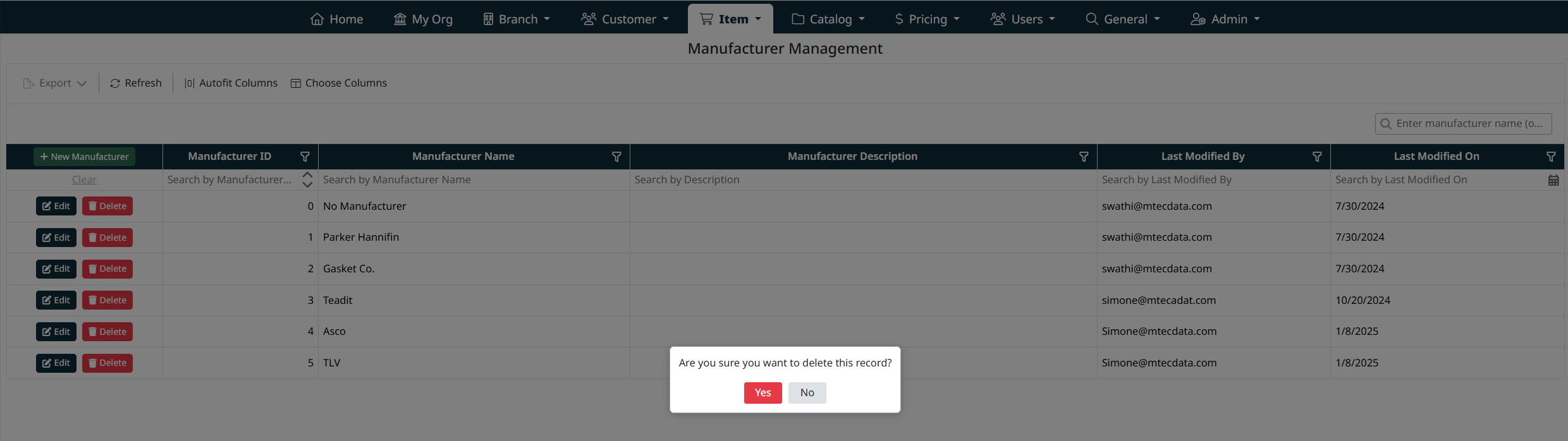
- Click Delete.
- Confirm the deletion when prompted.
Important:
Manufacturers that are already associated with items may be restricted from deletion. Ensure the manufacturer is not in use before deleting.
Notes and Best Practices
- Use consistent naming conventions to avoid duplicate or similar manufacturer entries.
- If an item does not have a known manufacturer, the system provides a No Manufacturer option.
- Manufacturer records can be reused across many items, reducing duplication and improving data consistency.
Navigation Grids, Search and Filters
This screen uses a standard grid controls for searching, filtering, sorting, and managing records.
The grid provides the following tools:
- Column filters to narrow results by specific fields (such as IDs, names, notes, and modification details)
- Inline search fields below column headers for quick, column-specific filtering
- Global search bar for keyword-based searching across visible data
- Column sorting by clicking column headers
- Grid actions including export, refresh, auto-fit columns, and column visibility customization
For detailed instructions on using grid search, filters, and column controls, see Navigating Grids, Search, and Filters.
Created with the Personal Edition of HelpNDoc: Easily convert your WinHelp HLP help files to CHM with HelpNDoc's step-by-step guide