Navigating Grids, Search, and Filters

Navigating Grids, Search, and Filters
Overview
Most management screens in the eCatalog Admin Portal use a common grid layout. This grid provides powerful tools for searching, filtering, sorting, and customizing how data is displayed.
1. Quick Search (Top-right Search Box)
- Performs a keyword search across visible columns
- Useful for fast lookups (e.g., typing baton)
- Updates results instantly as you type

2. Column Filters
Each column header includes a filter icon that allows you to:
- Filter by exact values
- Select one or more values from a list
- Combine multiple column filters at once
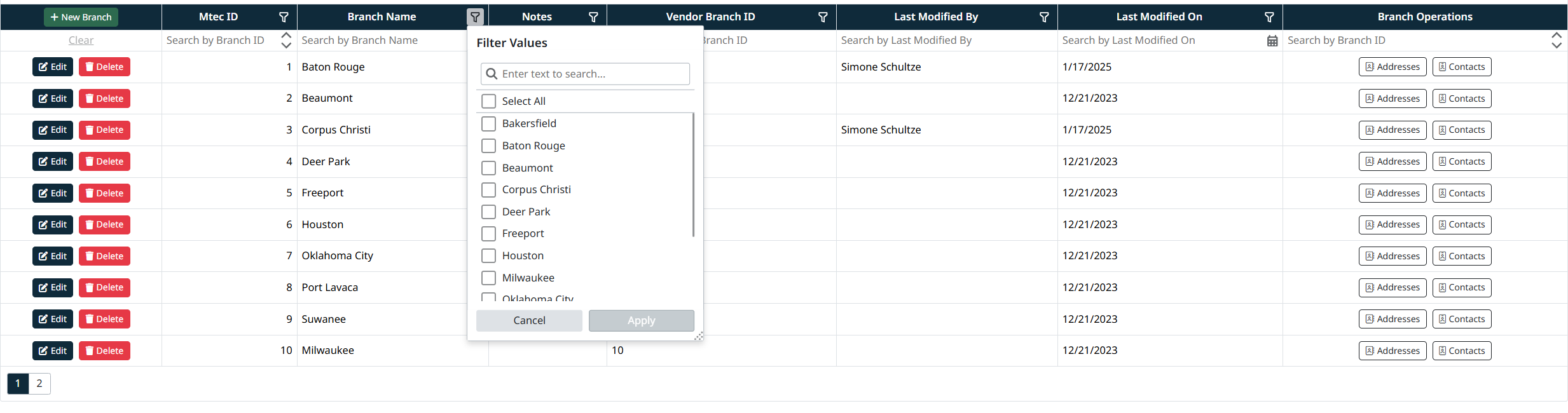
3. Inline Column Search Fields
Below each column header is an inline search box:
- Type partial values (e.g., bat)
- Supports column-specific filtering
- Can be used together with column filters

4. Sorting Columns
- Click a column header to sort ascending or descending
- Sorting works together with filters and search

5. Column Chooser (Customize Visible Columns)
Use Choose Columns to:
- Show or hide columns
- Reorder columns using drag-and-drop
- Tailor the grid to your workflow
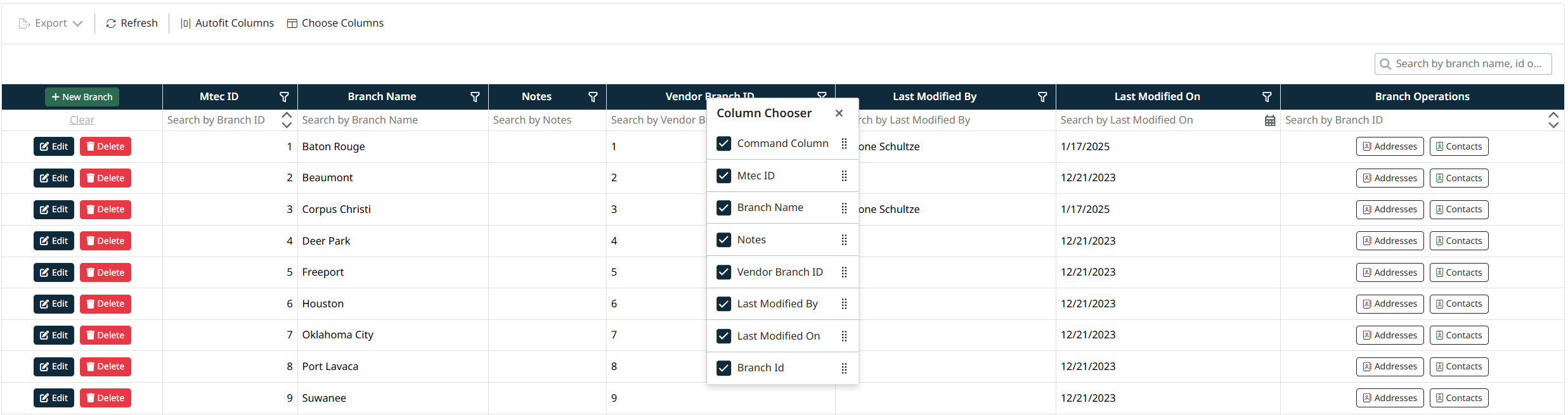
6. Grid Actions Toolbar
The toolbar above the grid allows you to:
- Export grid data
- Refresh the grid
- Auto-fit columns for optimal display
- Choose columns
7. Clearing Filters
- Use Clear to reset all filters
- Removes search terms, column filters, and sorting
Created with the Personal Edition of HelpNDoc: Produce electronic books easily