Manage Address Types

Address Types Management
Address Types are used throughout the system to classify and label different kinds of addresses, such as Billing, Shipping, Primary, or Invoice. These types are referenced when creating and managing customer, branch, and site addresses to ensure consistency and correct usage across the platform.
Navigation
You can access Address Types Management from the main menu:
General → Address Types
This opens the Address Types Management screen, where all configured address types are displayed and maintained.

Address Types Grid Overview
The Address Types grid displays all configured address types and includes the following information:
- Address Type ID – The system-generated identifier for the address type
- Address Type Name – The descriptive name of the address type (for example, Shipping or Invoice)
- Last Modified By – The user who last updated the record
- Last Modified On – The date the record was last modified
Each row includes Edit and Delete actions for managing individual address types.
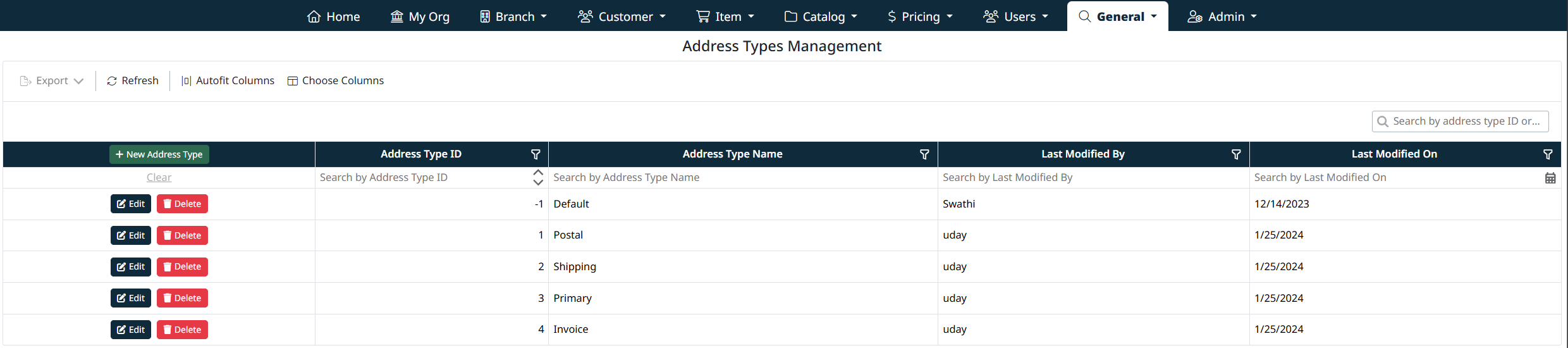
Search, Filter, and Grid Controls
The Address Types grid includes tools to help you quickly locate and manage records:
- Column filters for address type ID, name, and modification details
- Search bar for keyword-based searching
- Sorting by clicking column headers
- Export, refresh, and column customization options
These controls allow efficient navigation and management, especially as the list of address types grows.
Creating a New Address Type
To create a new address type:
- Click + New Address Type at the top of the grid.
- Enter an Address Type Name.
- Click Save Address Type to add the new record.
The new address type becomes immediately available for use when creating or editing addresses throughout the system.

Editing an Address Type
To edit an existing address type:
- Locate the address type in the grid.
- Click Edit.
- Update the Address Type Name as required.
- Click Save Address Type to apply the changes.
Changes take effect immediately and will be reflected anywhere the address type is used.

Deleting an Address Type
To delete an address type:
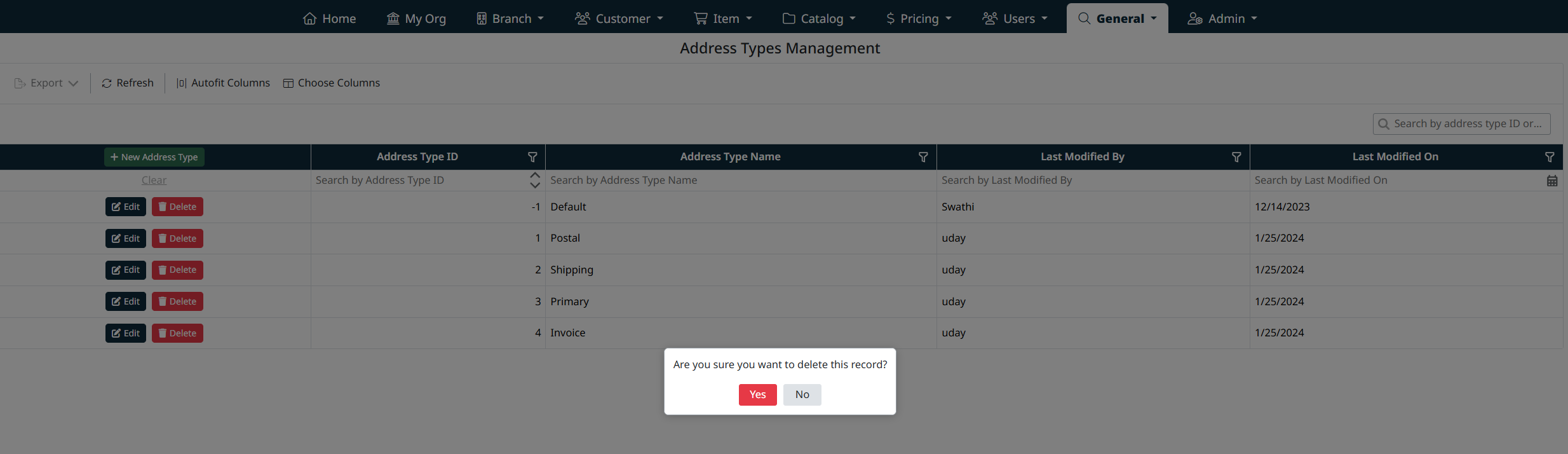
- Click Delete on the corresponding row.
- Confirm the deletion when prompted.
Important:
Deleting an address type may impact existing addresses that reference it. It is recommended to ensure the address type is no longer in use before deleting.
Usage Notes
- Address Types provide consistent classification of addresses across customers, branches, and sites.
- Well-defined address types improve data accuracy and downstream processing (such as shipping, billing, and reporting).
- Default or system-required address types should be reviewed carefully before modification or removal.
Navigation Grids, Search and Filters
This screen uses a standard grid controls for searching, filtering, sorting, and managing records.
The grid provides the following tools:
- Column filters to narrow results by specific fields (such as IDs, names, notes, and modification details)
- Inline search fields below column headers for quick, column-specific filtering
- Global search bar for keyword-based searching across visible data
- Column sorting by clicking column headers
- Grid actions including export, refresh, auto-fit columns, and column visibility customization
For detailed instructions on using grid search, filters, and column controls, see Navigating Grids, Search, and Filters.
Created with the Personal Edition of HelpNDoc: Revolutionize Your CHM Help File Output with HelpNDoc