Email Configurations

Manage Email Configuration
The Email Configuration screen allows administrators to create and manage automated email templates used throughout the system. These templates are triggered by system events such as order submissions or user invitations and ensure consistent, professional communication with customers and users.
You can define the email subject, recipients, and fully formatted email content using dynamic variables.
Navigation
To access Email Configuration management:
General → Email Configs
This opens the Manage Email Configuration screen, displaying all existing email templates.
Email Configurations Grid Overview
The Email Configurations grid displays all configured email templates and includes the following information:
- EmailConfig ID – The unique system identifier for the email template
- EmailConfig Name – A descriptive name for the email configuration
- Email Subject – The subject line of the email, including any dynamic variables
- Email Body – Indicates that a formatted email template exists (viewable via View Template)
- Email Variables – A comma-separated list of variables available for use in the template
- Email To Recipients – Primary recipient email addresses (if defined)
- Email CC Recipients – Carbon copy recipients (if defined)
- Last Modified By – The user who last updated the configuration
- Last Modified On – The date the configuration was last modified
Each row includes Edit and Delete actions.

Grid Tools and Controls
The grid includes standard tools to help you manage and locate email configurations efficiently:
- Column-based filtering for all fields
- Keyword search across configuration name, subject, and variables
- Column sorting
- Export, refresh, and column customization options
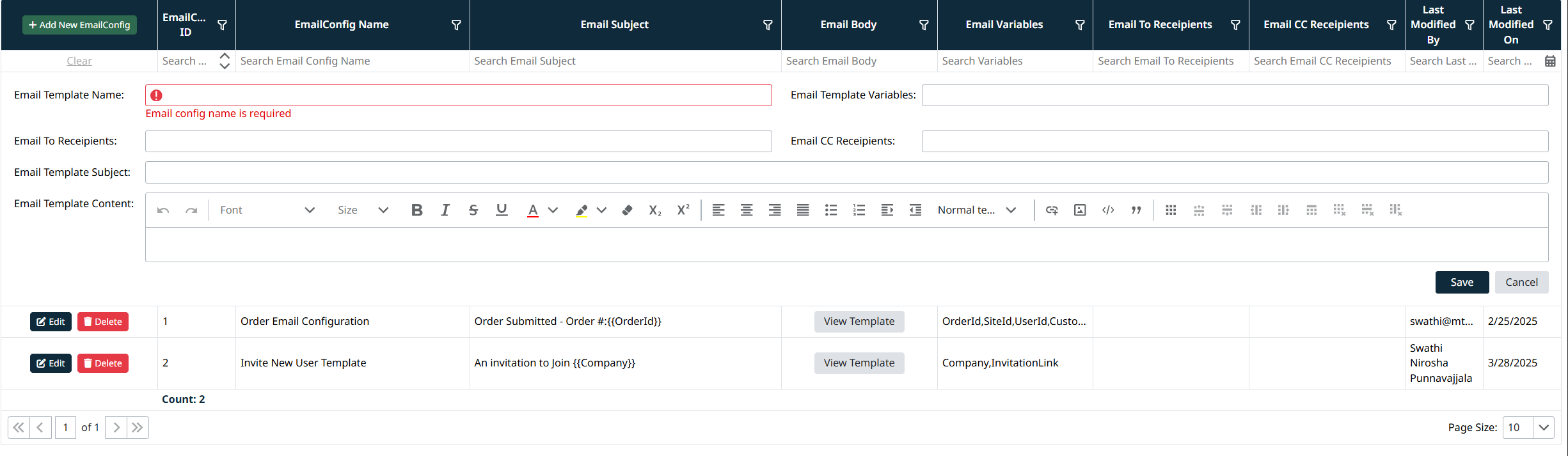
Creating a New Email Configuration
To create a new email template:
- Click + Add New EmailConfig
- Complete the following fields:
Required Fields
- Email Template Name
A unique, descriptive name for the email configuration (for example: Order Email Configuration). - Email Template Subject
The subject line of the email. Dynamic variables can be inserted using double curly braces, for example:
Order Submitted – Order #{{OrderId}} - Email Template Content
The body of the email, created using the rich text editor.
This content can include: - Formatted text
- Tables
- Images
- Dynamic variables (for example {{CustomerName}}, {{OrderId}})
Optional Fields
- Email To Recipients
One or more email addresses to receive the email. Multiple addresses can be comma-separated. - Email CC Recipients
Optional CC recipients for the email. - Email Template Variables
A comma-separated list of variables available for use in the template.
These variables must match system-supported values (for example: OrderId, SiteId, UserId).
- Click Save to create the email configuration
- Click Cancel to discard changes
Editing an Email Configuration
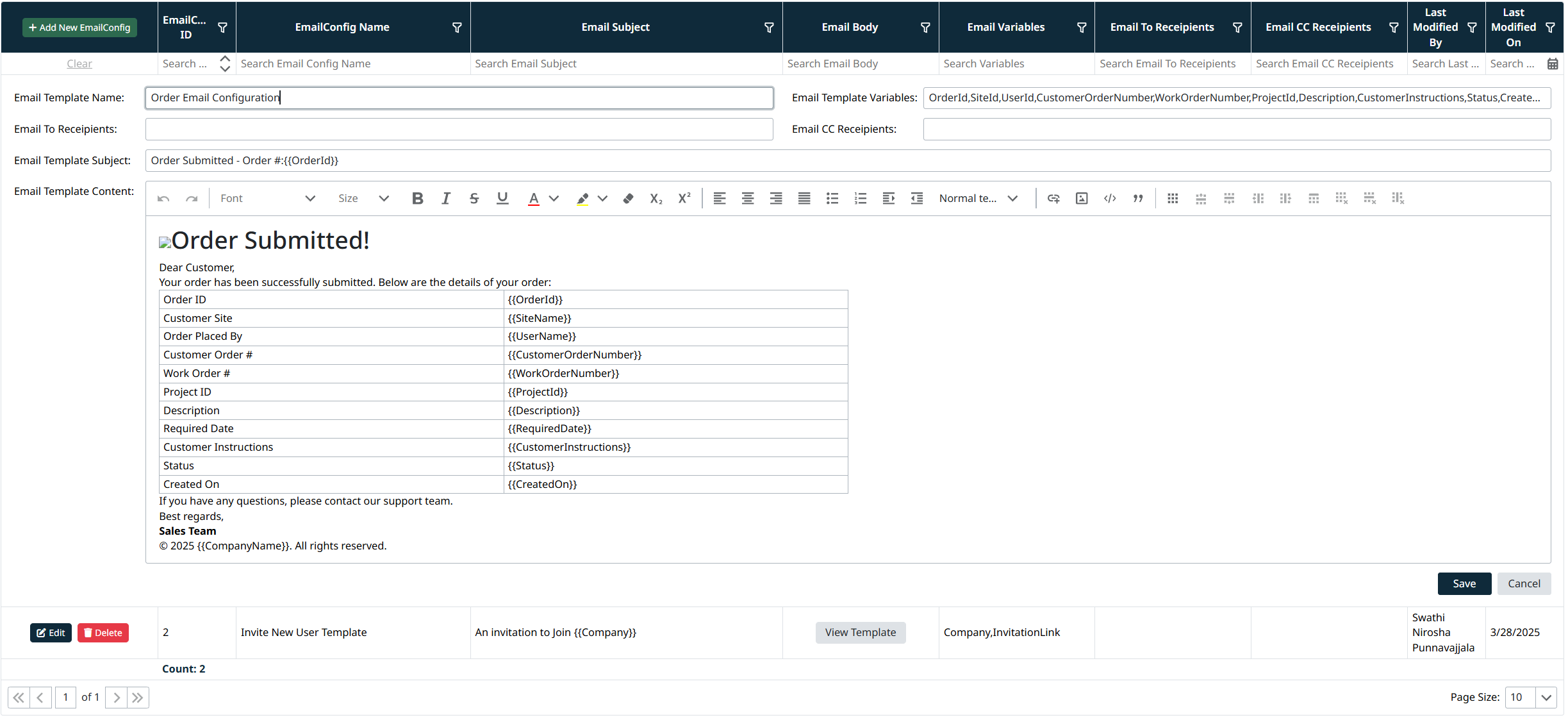
To edit an existing email configuration:
- Click Edit next to the desired email template
- Update any of the fields, including:
- Template name
- Subject
- Recipients
- Variables
- Email content
- Use the rich text editor to modify formatting or layout
- Click Save to apply changes or Cancel to discard them
Viewing an Email Template
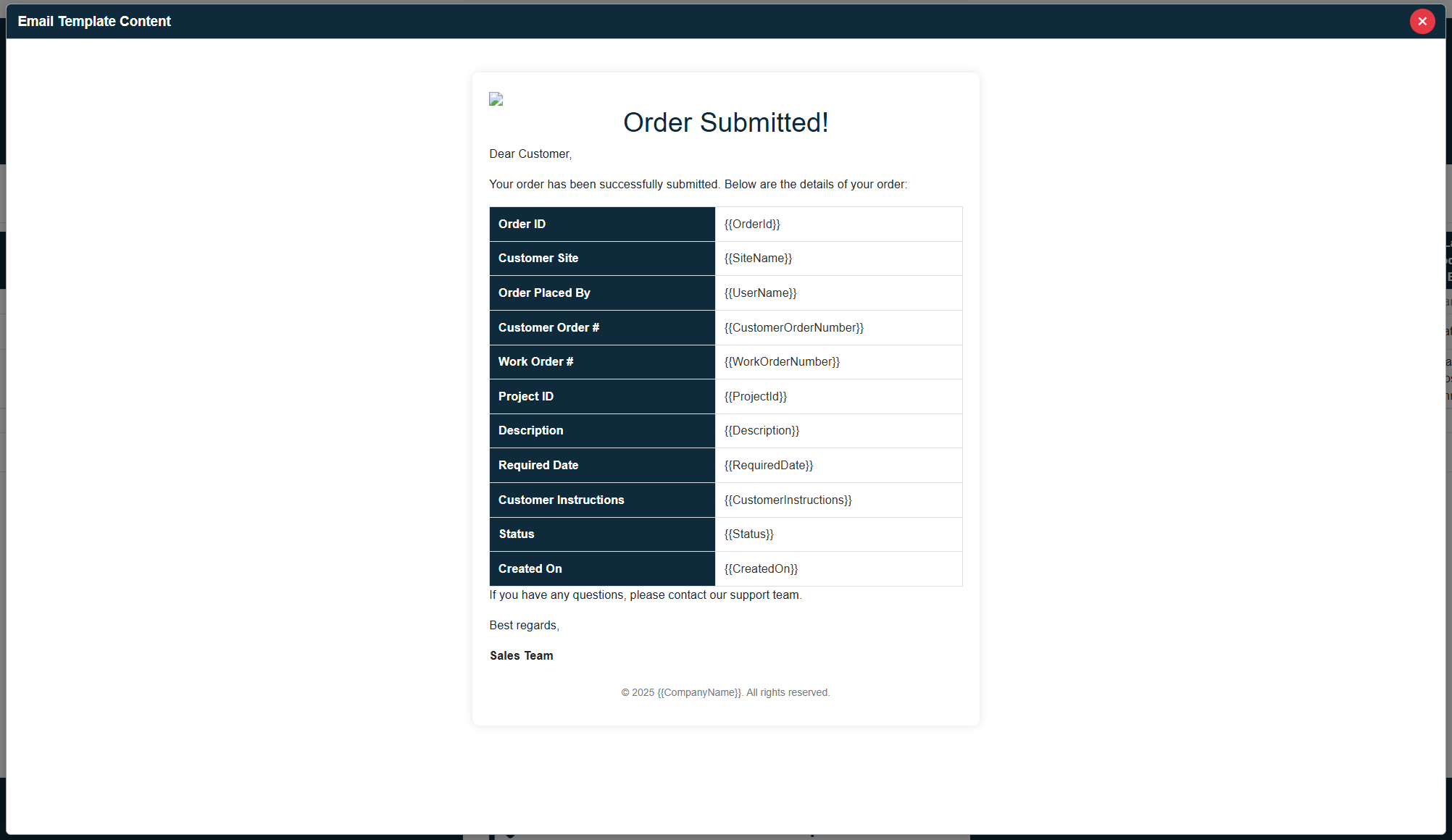
From the grid, click View Template to preview the formatted email body.
This allows you to review layout, formatting, and variable placement without editing the record.
Deleting an Email Configuration
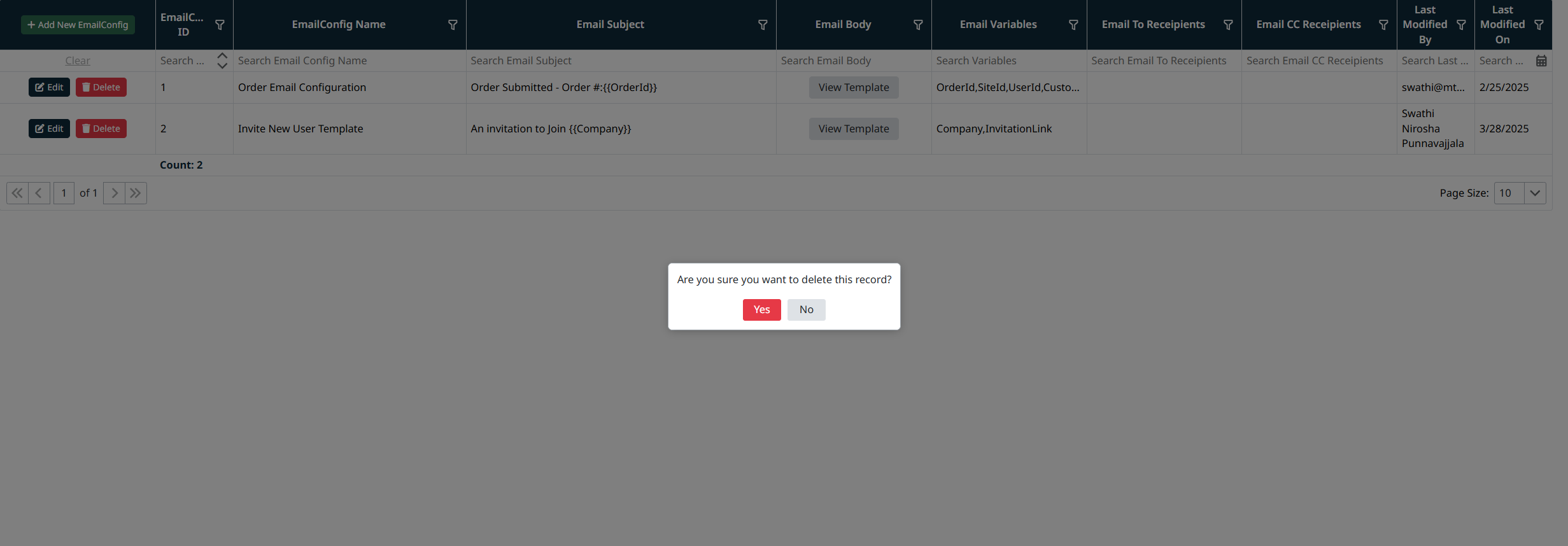
To delete an email configuration:
- Click Delete next to the template
- Confirm the deletion when prompted
Warning:
Deleting an email configuration may impact automated system notifications that rely on this template.
Using Email Variables
Email variables allow dynamic data to be injected into emails at runtime. Variables must be wrapped in double curly braces:
{{VariableName}}
Examples:
- {{OrderId}}
- {{CompanyName}}
- {{InvitationLink}}
Only variables listed in the Email Template Variables field are supported for that template.
Best Practices
- Use clear, descriptive template names
- Keep variable lists accurate and up to date
- Test templates after changes to ensure variables resolve correctly
- Avoid deleting templates that are actively used by system workflows
Navigation Grids, Search and Filters
This screen uses a standard grid controls for searching, filtering, sorting, and managing records.
The grid provides the following tools:
- Column filters to narrow results by specific fields (such as IDs, names, notes, and modification details)
- Inline search fields below column headers for quick, column-specific filtering
- Global search bar for keyword-based searching across visible data
- Column sorting by clicking column headers
- Grid actions including export, refresh, auto-fit columns, and column visibility customization
For detailed instructions on using grid search, filters, and column controls, see Navigating Grids, Search, and Filters.
Created with the Personal Edition of HelpNDoc: Effortlessly Support Your Windows Applications with HelpNDoc's CHM Generation