Manage Search Indexes

Manage Search Indexes
The Manage Search Indexes section is used to configure and maintain the search indexes that power search, filtering, and faceted navigation within the PunchOut eCatalog.
Search indexes determine:
- Which fields are searchable
- Which fields appear as filters (facets)
- How items, categories, and properties are indexed for customer search
Important: This section is intended for system administrators or advanced users only.
When to Use This Section
You should manage or rebuild search indexes when:
- New items have been created
- Item categories have been added or changed
- Item properties have been added, removed, or modified
- Facets in the PunchOut eCatalog are missing or outdated
Because facets are generated from the search index definition, indexes must be deleted and re-created to reflect structural changes.
Search Index Overview
The main Search Indexes page displays a list of all configured indexes.
Each index shows:
- Index Name
- Display Name
- Active status
- Created / Modified by
- Created / Modified dates
Available actions:
- Show Fields – View index field configuration
- Delete – Remove an index
- Create – Create a new index using a template

Creating a Search Index
- Select a Template from the Template drop down.
- Enter an Index Name.
- Click Create.
The new index will be created and marked as active.
Index templates define the base structure of searchable fields and facets.

Deleting and Rebuilding an Index
When item structure changes (items, categories, or properties), the index must be rebuilt.
To rebuild an index:
- Click Delete next to the existing index.
- Re-create the index using the appropriate template.
- Allow the system to regenerate facets and searchable fields.
Warning:
Deleting an index temporarily removes search and facets from the PunchOut eCatalog until the index is re-created.

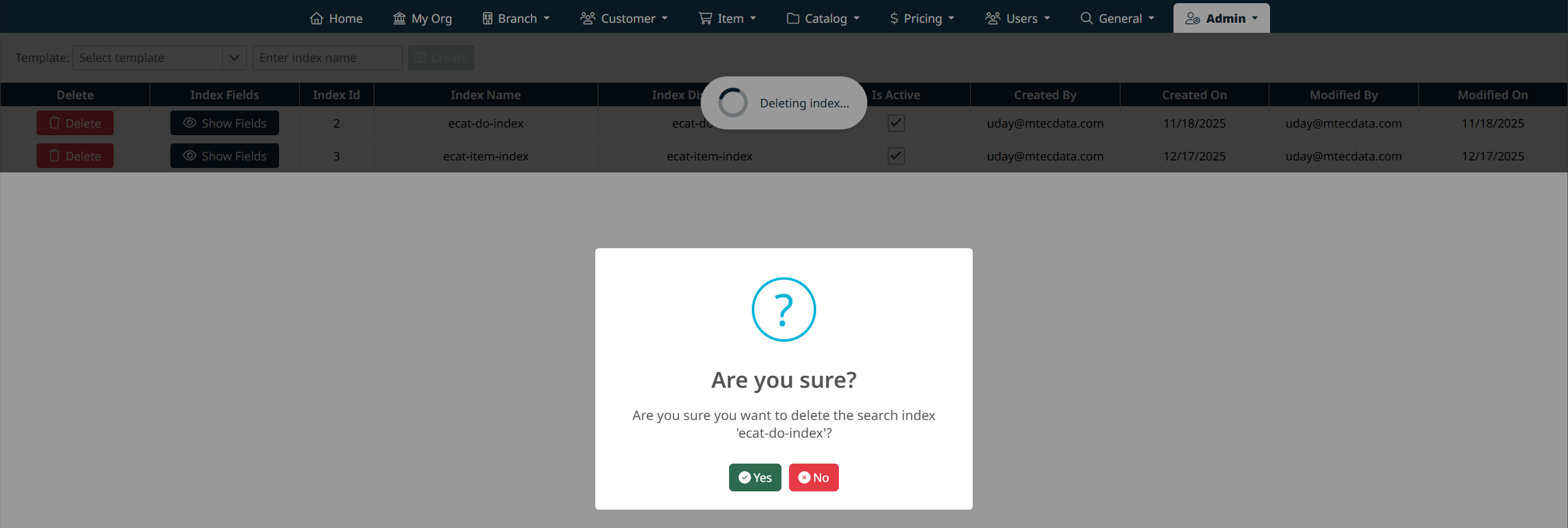
Viewing Database Index Fields
Click Show Fields to view the Database Index Fields tab.
This view displays:
- Field Name and Display Name
- Field Type and Data Type
- Searchable, Filterable, Sortable, and Facetable settings
- Whether fields appear in search results or facets
These settings control how data behaves in the eCatalog search experience.
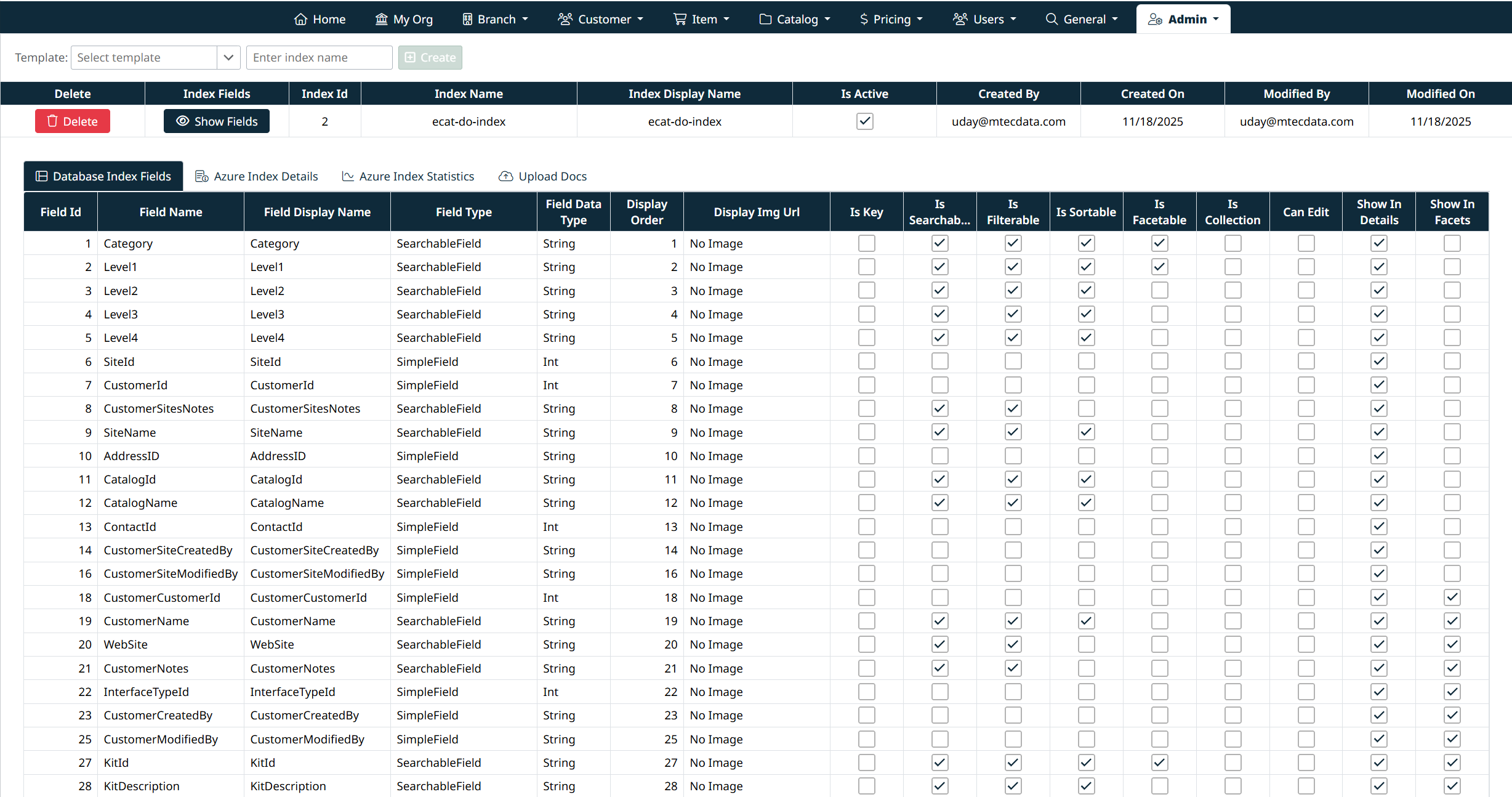
Azure Index Details
The Azure Index Details tab displays the underlying Azure Search index configuration.
This includes:
- Index name
- Total field count
- Azure-specific field settings
- Analyzer configurations
This section is primarily informational and should not typically be edited directly.
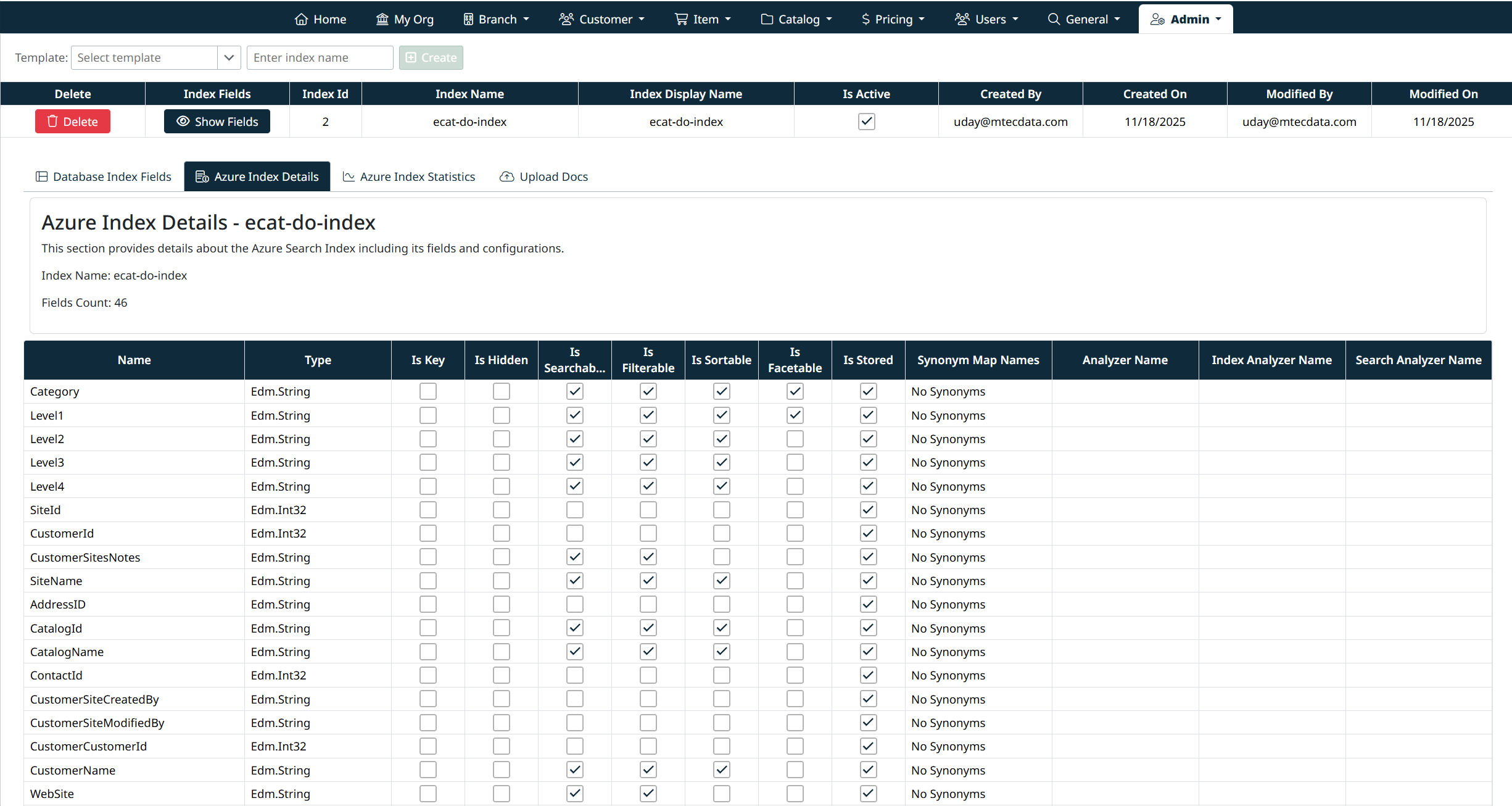
Azure Index Statistics
The Azure Index Statistics tab provides operational insight into the index.
Information includes:
- Total document count
- Last modified timestamp
Use this view to confirm whether recent changes have been indexed.
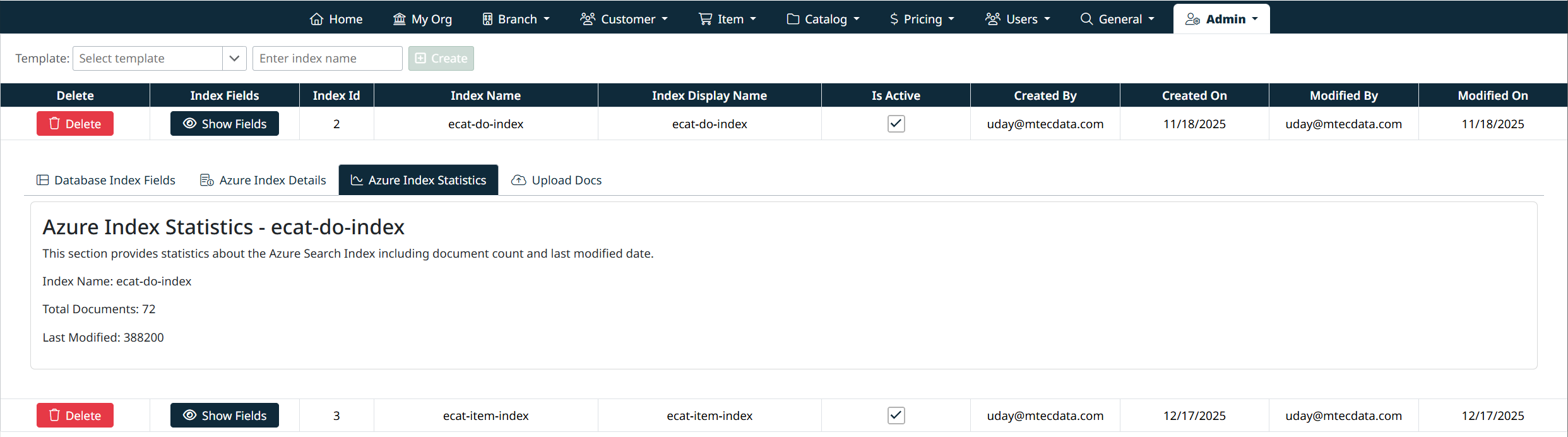
Upload Documents
The Upload Docs tab is used to build or rebuild the search index after all item-related configuration has been completed.
Once Item Categories and Item Properties have been fully defined and updated in:
- Manage Item Categories
- Manage Master Properties
you must select Upload Docs to populate the search index and generate the searchable fields and facets used in the PunchOut eCatalog.
This process:
- Builds the index documents
- Enables updated facets and filters
- Ensures new or changed items appear correctly in search results
Important:
Changes to item categories or properties will not appear in the PunchOut eCatalog until the documents are uploaded and the index has been rebuilt.

Best Practices
- Always rebuild search indexes after structural changes to items or properties
- Avoid deleting indexes during peak customer usage
- Limit access to this section to trained administrators
- Verify index statistics after rebuilding
Created with the Personal Edition of HelpNDoc: Enhance Your Documentation with HelpNDoc's Advanced Project Analyzer