Manage States

States Management
The States Management screen allows you to create and maintain state, province, or regional records and associate them with countries. These records are used throughout the system for address selection, customer and site management, and other location-based data.
You can add new states, edit existing ones, and remove states that are no longer required.
Navigation
To access States Management:
General → States
This opens the States Management grid displaying all configured states.

States Grid Overview
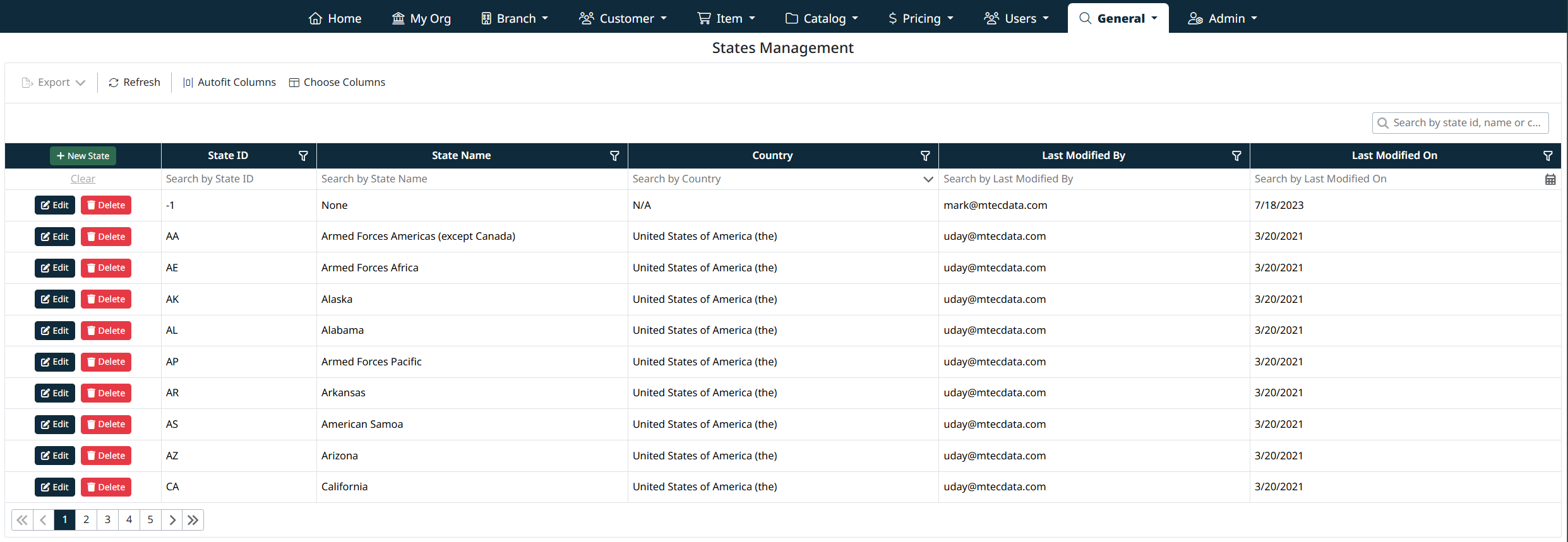
The Countries grid displays all configured countries and includes the following information:
- State ID – The unique identifier or code for the state
- State Name – The primary state name used in the system
- Country – The name of the country where the state is situated
- Last Modified By – The user who last updated the record
- Last Modified On – The date the record was last modified
Each row includes Edit and Delete actions.
Creating a New State
- Click + New State at the top of the grid.
- Enter the required information:
- State ID
A short code for the state or region (for example, CA, TX, NS). - State Name
The full name of the state or region (for example, California). - Country
Select the associated country from the dropdown list.
- Click Save State to create the new state.
- Click Cancel to discard changes.
Once saved, the new state will appear in the grid and be available for use across the system.

Editing an Existing State
- Locate the state you want to update in the grid.
- Click Edit next to the state.
- Update one or more of the following fields:
- State ID
- State Name
- Country
- Click Save State to apply your changes.
- Click Cancel to revert without saving.
All changes are tracked with Last Modified By and Last Modified On values.

Deleting a State
- Locate the state in the grid.
- Click Delete next to the state.
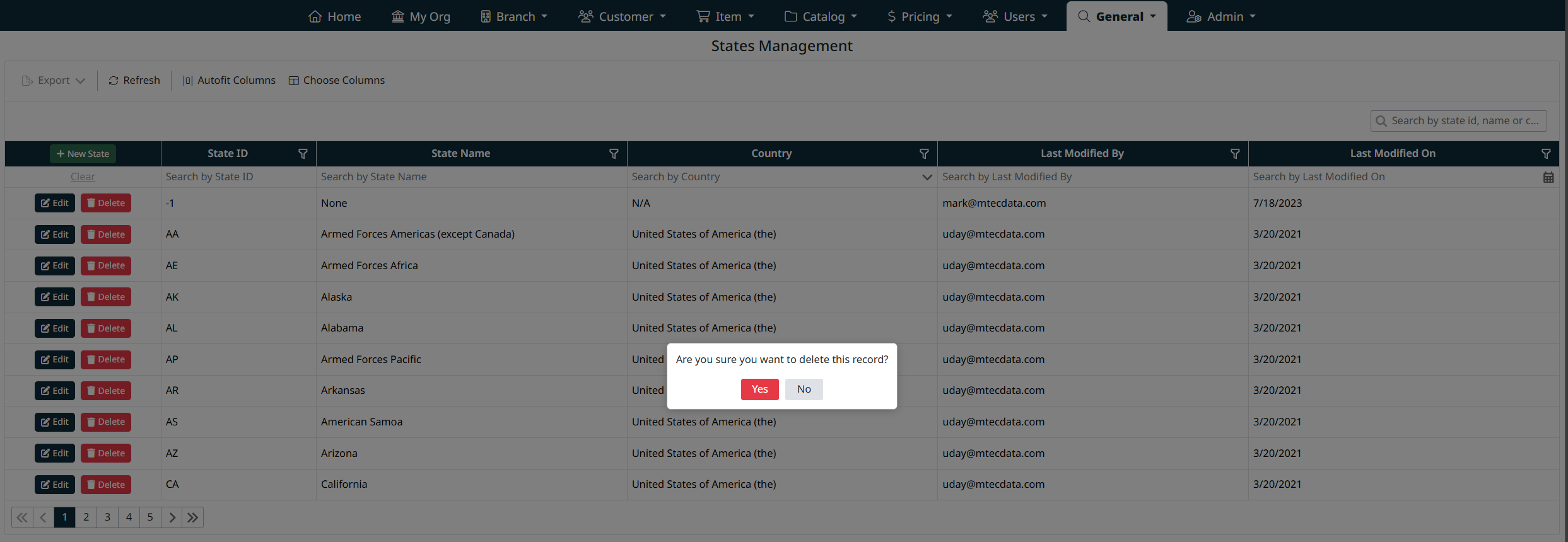
- Confirm the deletion when prompted.
Note: Deleting a state that is currently in use by customers, sites, or addresses may not be allowed.
Search, Filter, and Grid Controls
The States Management grid includes tools to help you quickly locate and manage records:
- Column filters for State ID, State Name, Country, and modification details
- Search box for keyword-based searching
- Sorting by clicking column headers
- Export, refresh, and column customization options
- Pagination controls for navigating large result sets
Best Practices
- Use standard state or province abbreviations where applicable.
- Ensure each state is assigned to the correct country.
- Avoid deleting states that may still be referenced by existing records.
Navigation Grids, Search and Filters
This screen uses a standard grid controls for searching, filtering, sorting, and managing records.
The grid provides the following tools:
- Column filters to narrow results by specific fields (such as IDs, names, notes, and modification details)
- Inline search fields below column headers for quick, column-specific filtering
- Global search bar for keyword-based searching across visible data
- Column sorting by clicking column headers
- Grid actions including export, refresh, auto-fit columns, and column visibility customization
For detailed instructions on using grid search, filters, and column controls, see Navigating Grids, Search, and Filters.
Created with the Personal Edition of HelpNDoc: Produce online help for Qt applications