Manage Item Categories

Manage Item Categories
Use this section to define and maintain the hierarchical structure used to organize items within the system.

Navigate to Item Categories
Item categories control how products are grouped, displayed, and filtered throughout the application. Categories can be created at multiple levels to support broad groupings as well as more granular classification.
From this screen, you can:
- Create new item categories
- Edit existing category names and descriptions
- Define parent and child category relationships
- View category hierarchy levels
- Manage category-specific properties used to describe items
Each category can have one or more Category Properties, which determine the attributes available for items assigned to that category.
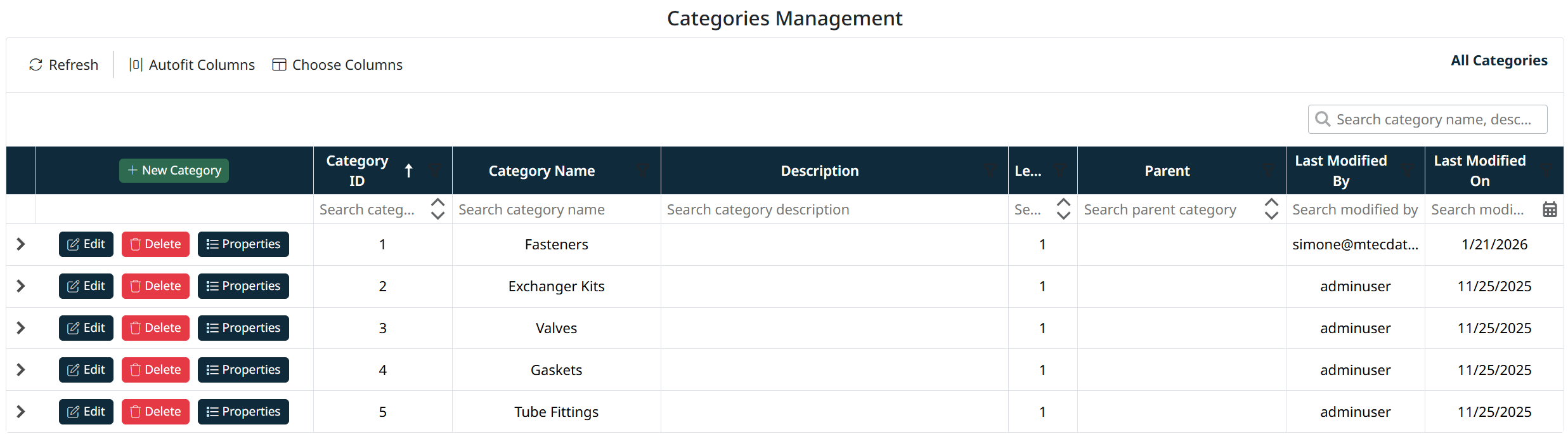
Note: Categories and category properties should be configured before creating or importing items to ensure consistent item structure and data quality.
Creating, Editing, and Deleting Item Categories
This section explains how to create, update, and remove item categories using the Categories Management screen.
Item categories define how items are organized and structured within the system. Categories may be arranged hierarchically using parent–child relationships.
Creating a New Category
- Navigate to Item ▸ Categories.
- Click + New Category.
- Enter the following information:
- Category Name – The display name for the category.
- Category Description (optional) – Additional details about the category.
- (Optional) Select a Parent Category to create a subcategory.
- Click Save Category to create the category.
Once saved, the new category will appear in the category grid and hierarchy.

Creating a New Category Screen
Editing an Existing Category
- Locate the category in the Categories grid.
- Click Edit next to the category you want to modify.
- Update the category details as needed:
- Category Name
- Category Description
- Parent Category (if applicable)
- Click Save Category to apply the changes.

Changes are saved immediately and reflected throughout the system.
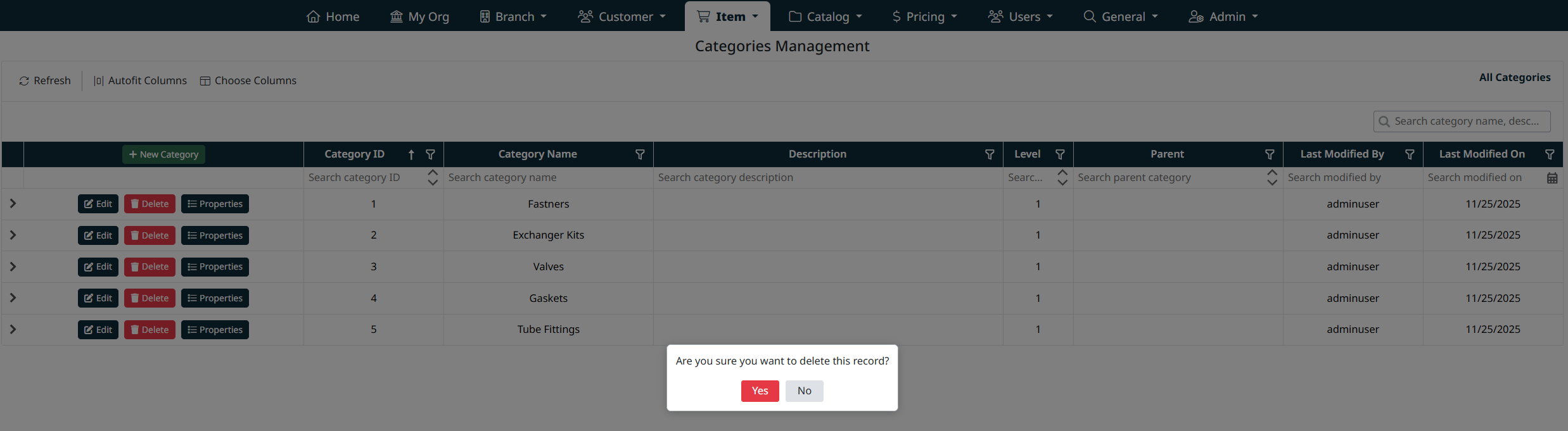
Deleting a Category
- Locate the category you want to remove in the grid.
- Click Delete.
- Confirm the deletion when prompted.
Important:
Categories that are associated with items or have dependent child categories may not be eligible for deletion. Remove or reassign dependencies before deleting a category.
Managing Category Properties
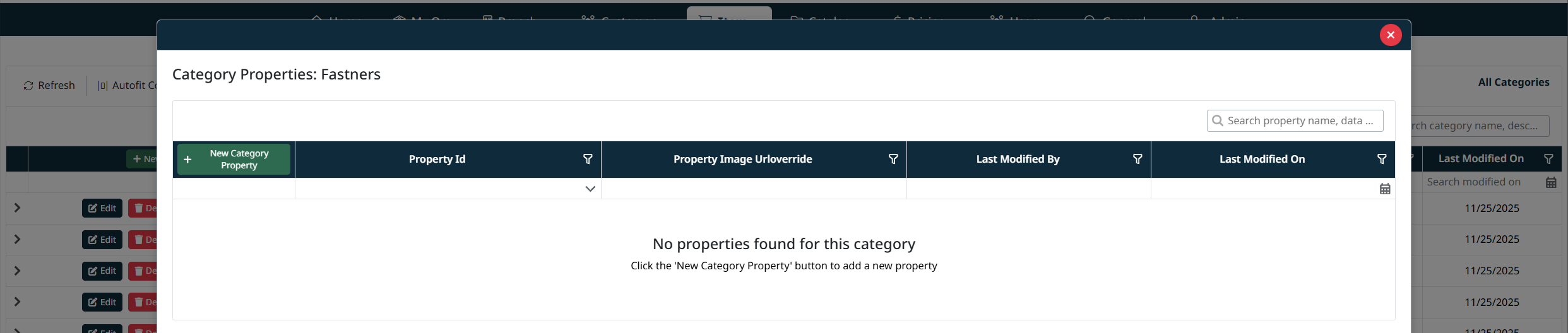
Each category can have its own set of Category Properties, which define item attributes specific to that category.
- Click Properties next to a category to view or manage its properties.
- Category properties control how item data is captured and displayed for items assigned to that category.
For more information, see Manage Master Properties.
Navigation Grids, Search and Filters
This screen uses a standard grid controls for searching, filtering, sorting, and managing records.
The grid provides the following tools:
- Column filters to narrow results by specific fields (such as IDs, names, notes, and modification details)
- Inline search fields below column headers for quick, column-specific filtering
- Global search bar for keyword-based searching across visible data
- Column sorting by clicking column headers
- Grid actions including export, refresh, auto-fit columns, and column visibility customization
For detailed instructions on using grid search, filters, and column controls, see Navigating Grids, Search, and Filters.
Best Practices
- Define your category structure before creating items.
- Use parent categories for high-level grouping and child categories for specificity.
- Configure category properties early to ensure consistent item data.
Created with the Personal Edition of HelpNDoc: Free EPub producer