Manage Pricebooks

PriceBook Management
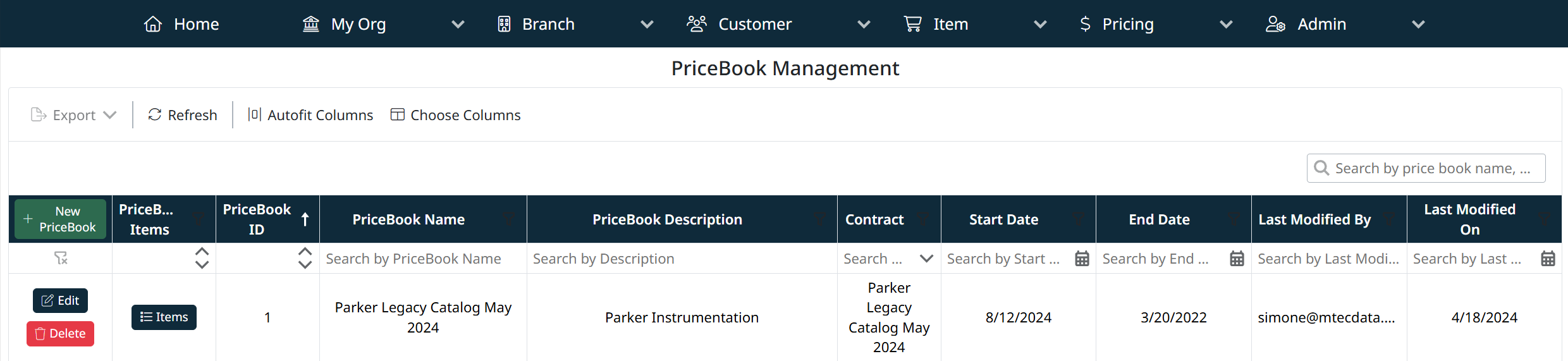
The PriceBook Management screen allows you to create, view, and manage pricebooks. Pricebooks define the pricing structure for items and are a key component in how products are presented to customers.
Accessing PriceBooks
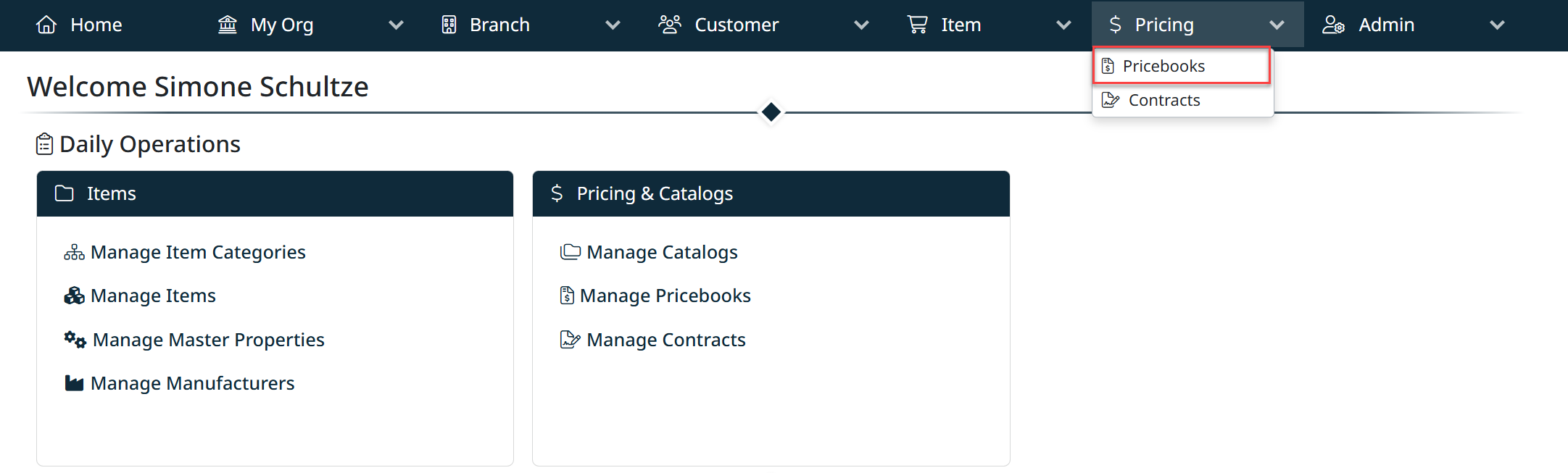
To access pricebooks:
- Click Pricing in the top navigation bar
- Select Pricebooks from the dropdown menu
You will be directed to the PriceBook Management screen.
Understanding PriceBooks
A PriceBook defines how items are priced. It works in combination with catalogs to control what customers see in their eCatalog.
How PriceBooks Fit Into the System
- Items → Define the products
- Catalogs → Define which items are available
- PriceBooks → Define how those items are priced
- Customer eCatalogs → Use catalogs (with linked pricebooks) to display products and pricing to specific customers or sites
Managing PriceBooks
From the PriceBook Management screen, you can:
- Create a new pricebook using the + New PriceBook button
- Edit an existing pricebook
- Delete a pricebook
- View associated contract, dates, and last modified details
- Navigate to PriceBook Items using the Items button
Creating a PriceBook
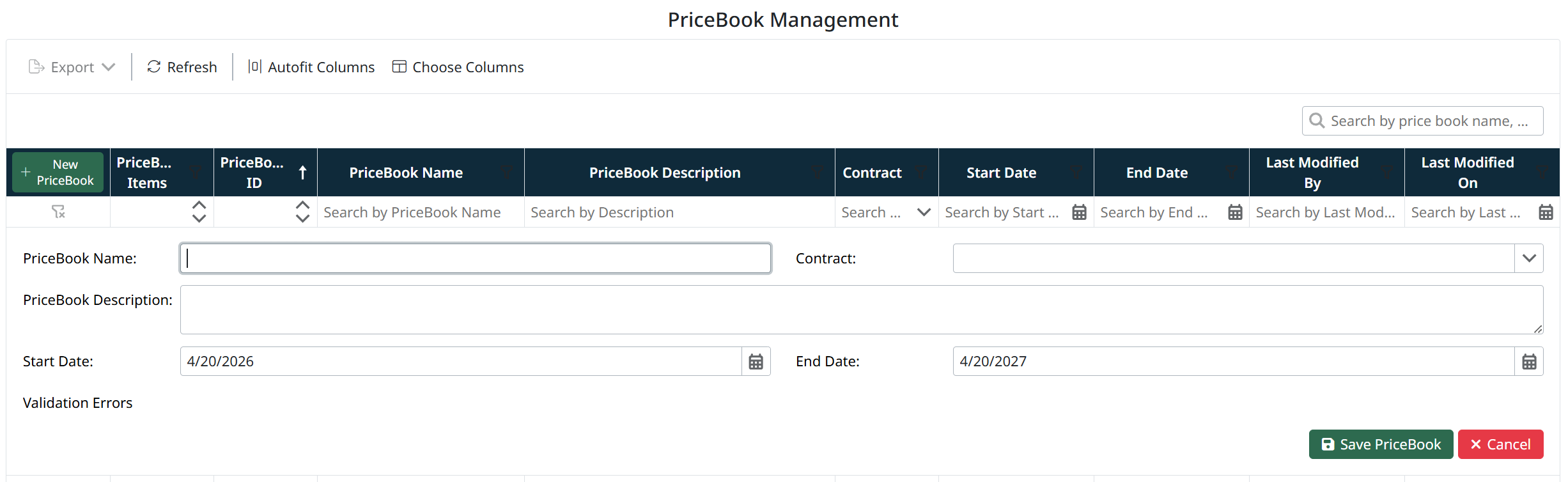
To create a new pricebook:
- Click + New PriceBook
- Enter the following details:
- PriceBook Name – A unique name for the pricebook
- PriceBook Description – Optional description
- Contract – Select the associated contract (if applicable)
- Start Date / End Date – Define the validity period
- Click Save PriceBook
Created with the Personal Edition of HelpNDoc: Experience a User-Friendly Interface with HelpNDoc's Documentation Tool