Manage Pricebook Items

PriceBook Items Management
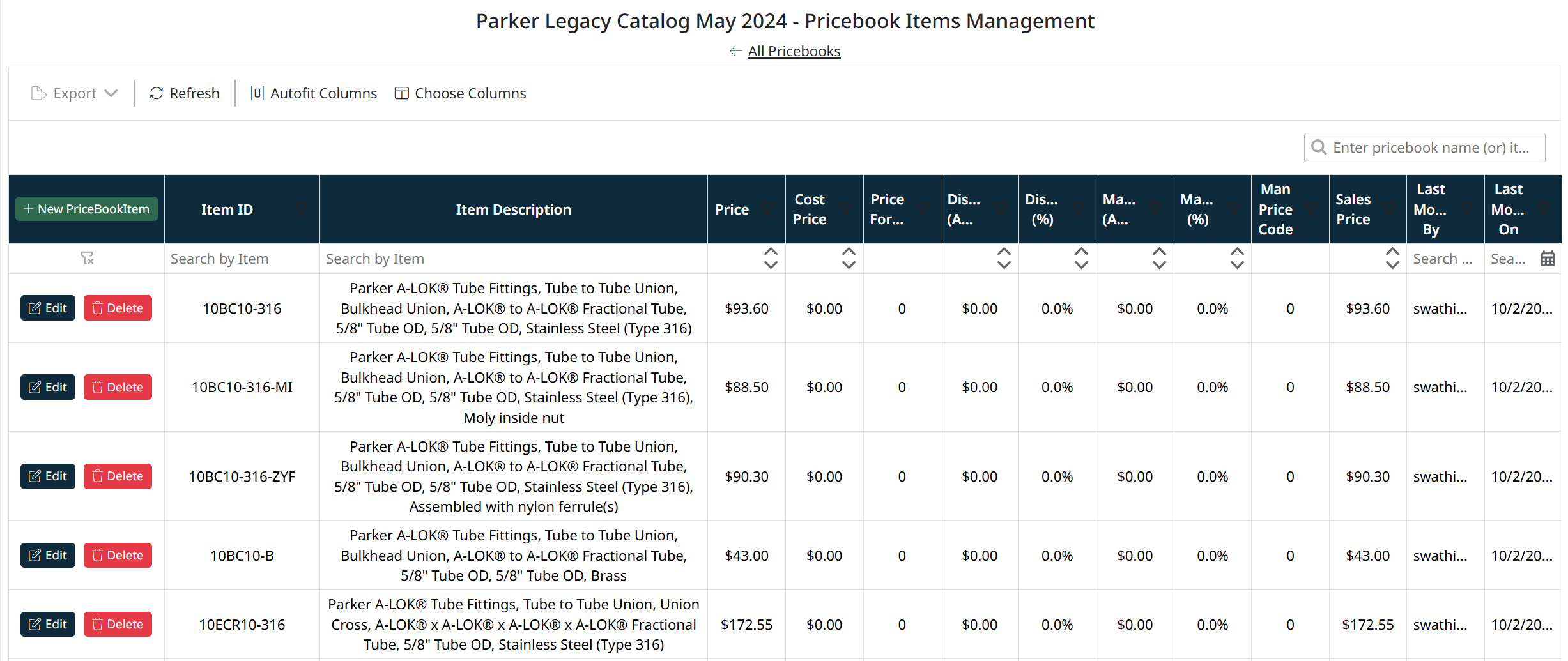
The PriceBook Items Management screen allows you to define and manage pricing for items within a selected pricebook. Each item added to a pricebook can have its own pricing structure, including base price, discounts, and markups.
Accessing PriceBook Items
Each pricebook contains a list of associated items, which can be accessed directly from the PriceBook Management grid.
To open the PriceBook Items screen:
- Navigate to Pricing → Pricebooks
- Locate the desired pricebook in the grid
- Click the Items button in the PriceBook Items column for that pricebook
You will be redirected to the PriceBook Items Management screen for the selected pricebook.

Notes
- The Items button provides quick access to manage pricing for items within that specific pricebook
- Each pricebook maintains its own set of items and pricing rules
- Changes made within the PriceBook Items screen apply only to the selected pricebook
Managing PriceBook Items
Each pricebook contains a list of items with associated pricing.
To manage items:
- Click the Items button next to the desired pricebook
- You will be directed to the PriceBook Items Management screen
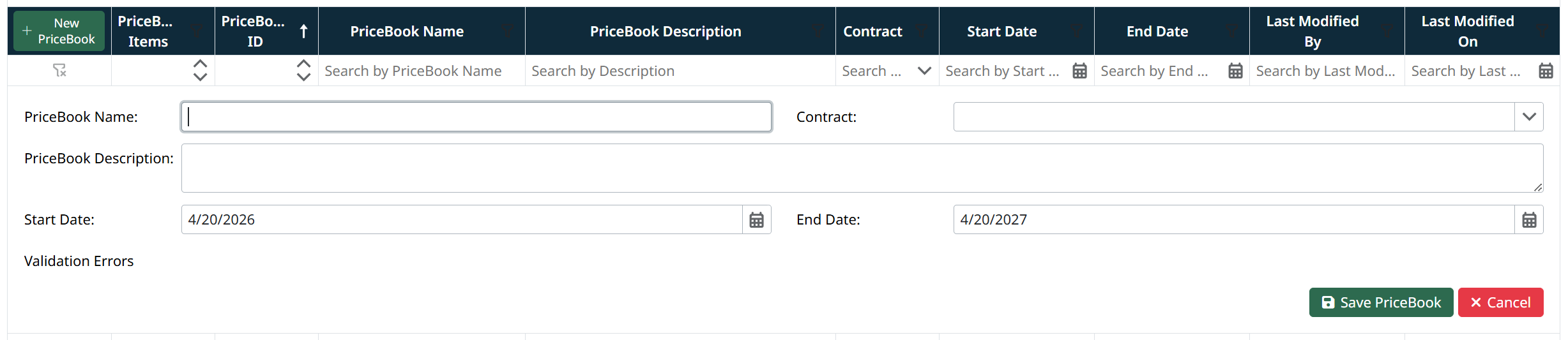
Adding Items to a PriceBook
- Click + New PriceBookItem
- Select an Item from the dropdown list
- Enter pricing details, including:
- Price
- Cost Price
- Discount Amount / Percent
- Markup Amount / Percent
- Sales Price (calculated or entered depending on setup)
- Click Save PriceBook Item
Managing Existing PriceBook Items
From the PriceBook Items Management screen, you can:
- View all items assigned to the pricebook
- Edit pricing values for individual items
- Remove items using the Delete button
- Search and filter items using the column filters
Important Notes
- Pricebooks must be linked to catalogs to be used in customer-facing eCatalogs
- A single item can have different pricing across multiple pricebooks
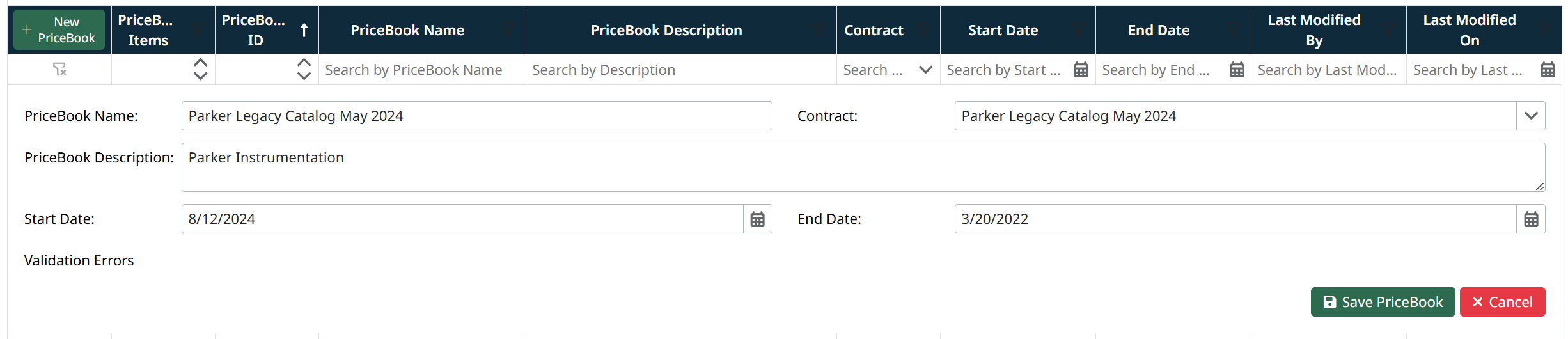
- Pricebooks can be controlled by contracts and date ranges
- Changes to pricebooks directly impact pricing displayed in customer eCatalogs
Created with the Personal Edition of HelpNDoc: Transform Your Word Document into a Professional eBook with HelpNDoc