Manage Contracts

Contract Management Overview
The Contract Management screen allows you to create, view, and manage contracts that control customer-specific pricing and validity periods.
Contracts are typically linked to pricebooks, which are then applied to catalogs used by customer sites.
Navigating to Contracts
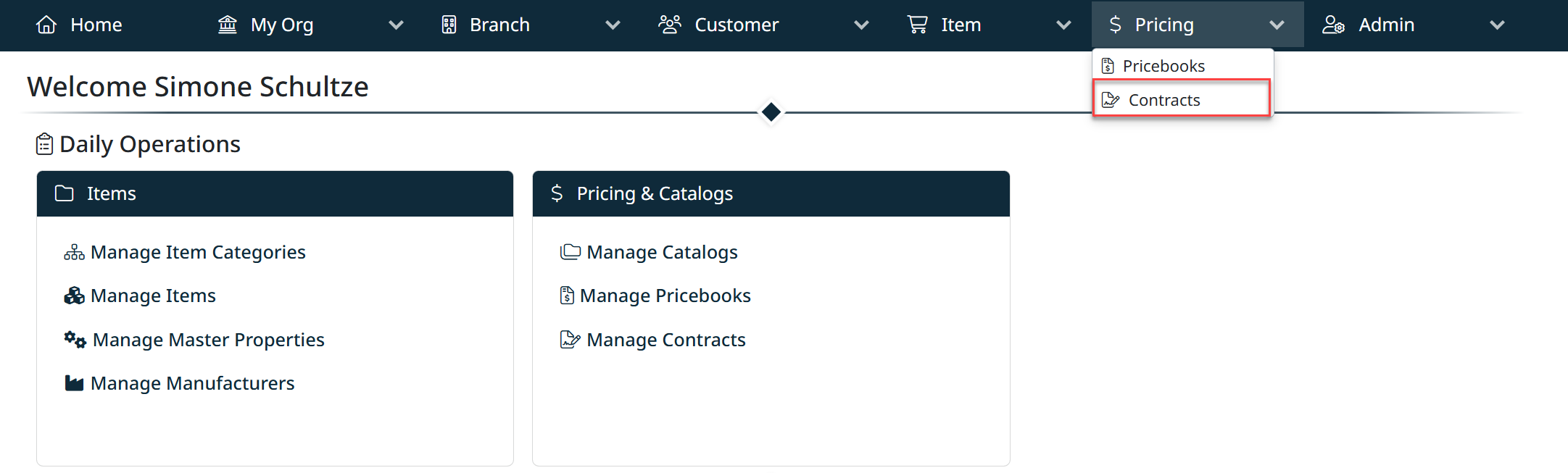
To access the Contract Management screen:
- Click Pricing in the top navigation bar
- Select Contracts from the dropdown menu
You will be directed to the Contract Management screen.
Contract Grid
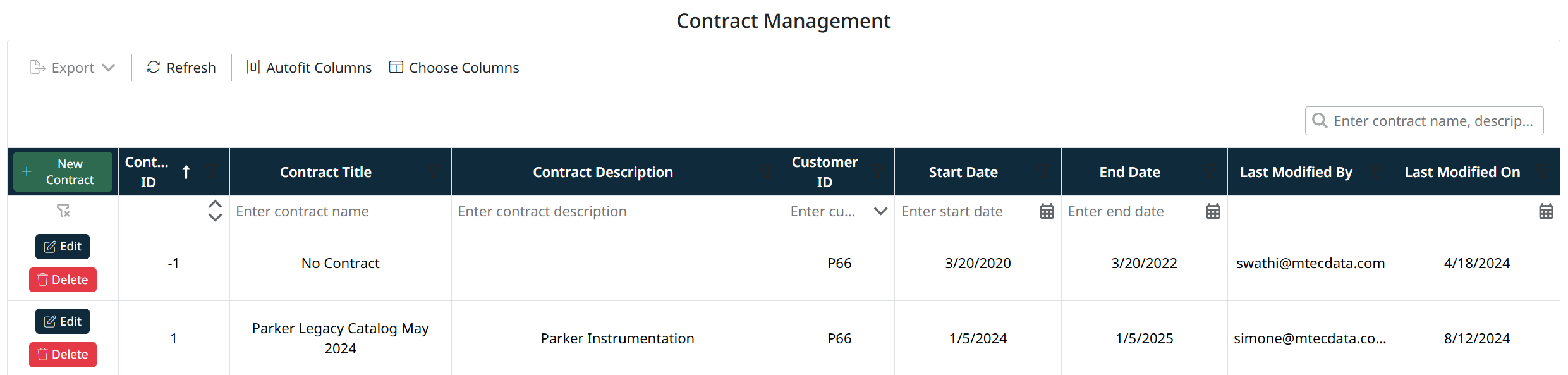
The grid displays all existing contracts and their key details.
Key Columns
- Contract ID – Unique identifier for the contract
- Contract Title – Name of the contract
- Contract Description – Description of the contract
- Customer ID – Customer associated with the contract
- Start Date / End Date – Contract validity period
- Last Modified By / On – Audit information
Toolbar Options
The toolbar at the top of the screen includes:
- + New Contract – Create a new contract
- Export – Export the contract list
- Refresh – Reload the data
- Autofit Columns – Adjust column widths
- Choose Columns – Show or hide columns
Creating a New Contract
To create a new contract:
- Navigate to Pricing → Contracts
- Click + New Contract
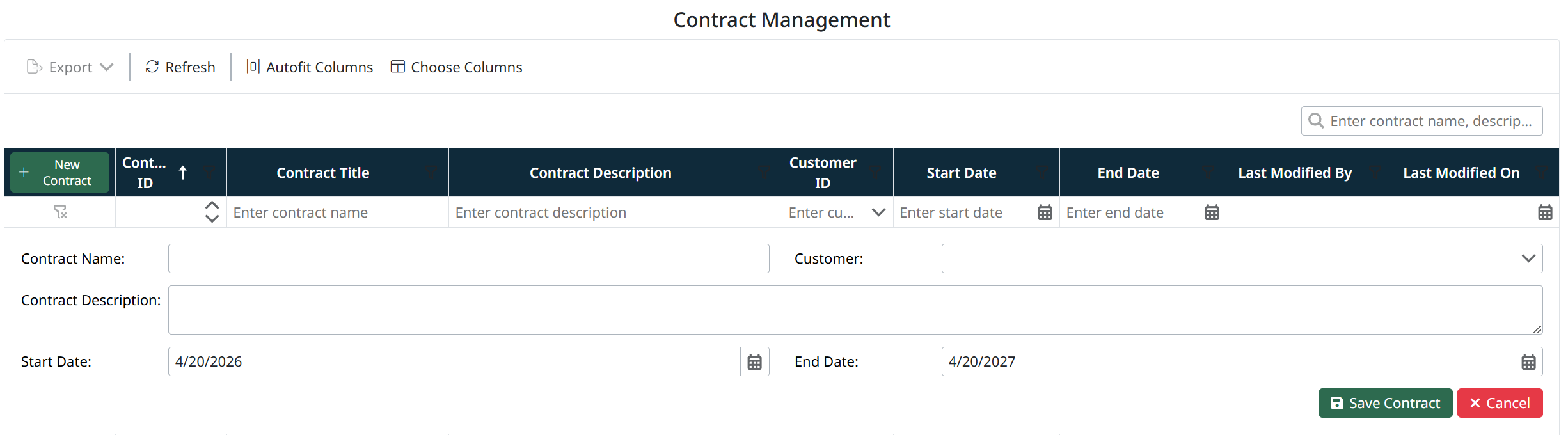
The contract entry form will be displayed.
Enter Contract Details
Complete the following fields:
- Contract Name
Enter a unique name for the contract - Customer
Select the customer this contract applies to - Contract Description
Enter a description to help identify the contract (optional) - Start Date
Select the date the contract becomes active - End Date
Select the date the contract expires
Save the Contract
- Click Save Contract to create the contract
- Click Cancel to discard changes
Once saved, the contract will appear in the Contract Management grid.
Editing a Contract
To modify an existing contract:
- Locate the contract in the Contract Management grid
- Click Edit next to the desired contract
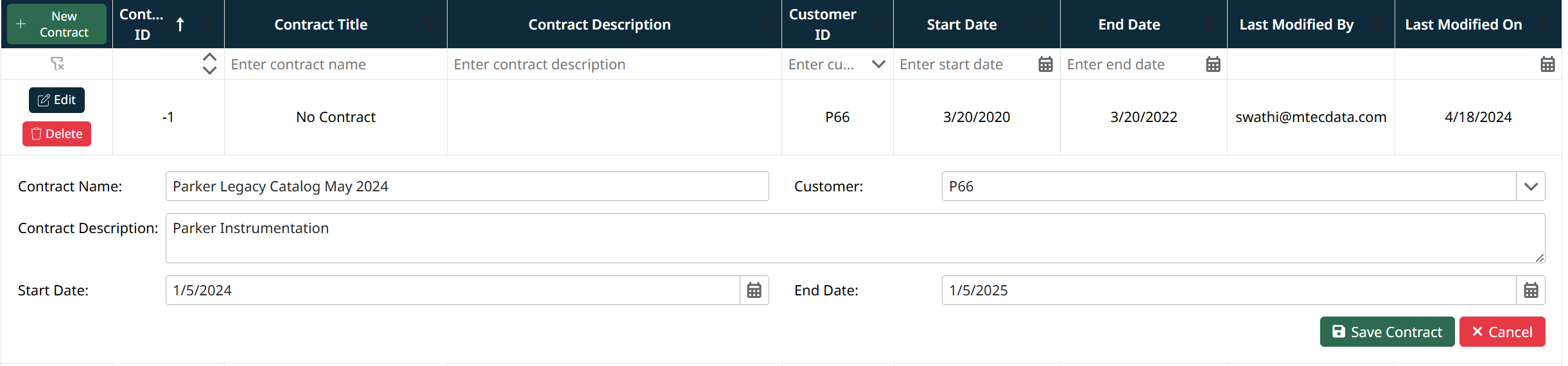
The contract form will open with the existing details.
Update Contract Details
- Modify any of the fields as required (name, customer, description, dates)
- Ensure the Start Date and End Date reflect the correct validity period
Save Changes
- Click Save Contract to apply updates
- Click Cancel to discard changes
Notes
- Contracts define customer-specific pricing rules and timeframes
- Contracts are linked to pricebooks, which determine item pricing
- If no contract is applied, a default option such as “No Contract” may be used
Created with the Personal Edition of HelpNDoc: Full-featured EBook editor