Manage Catalog Items

Catalog Items Management – Adding Items to a Catalog
Once a catalog has been created, items can be added to define which products are available within that catalog and how they are priced.
Accessing Catalog Items
To add items to a catalog:
- Navigate to Item in the top navigation bar
- Select Catalogs from the dropdown menu
- On the Catalog Management screen, locate the desired catalog
- Click the Items button next to the catalog
You will be directed to the Catalog Items Management screen for the selected catalog.
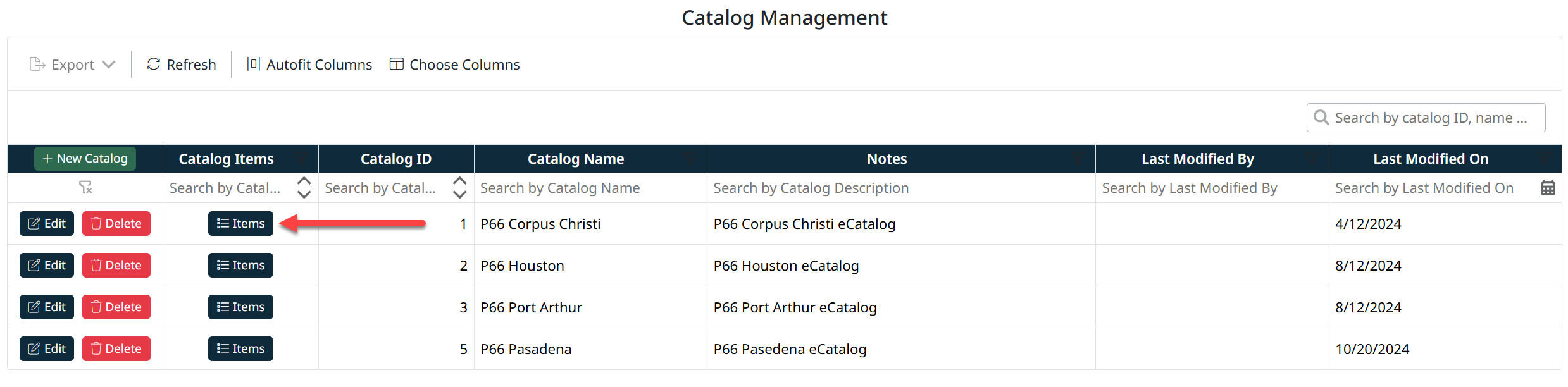
Adding a New Catalog Item
To add an item to the catalog:
- Click + New CatalogItem
- In the Item field, begin typing or select the required item from the dropdown list
- The system will display matching items, including item ID and description
- Select the appropriate item
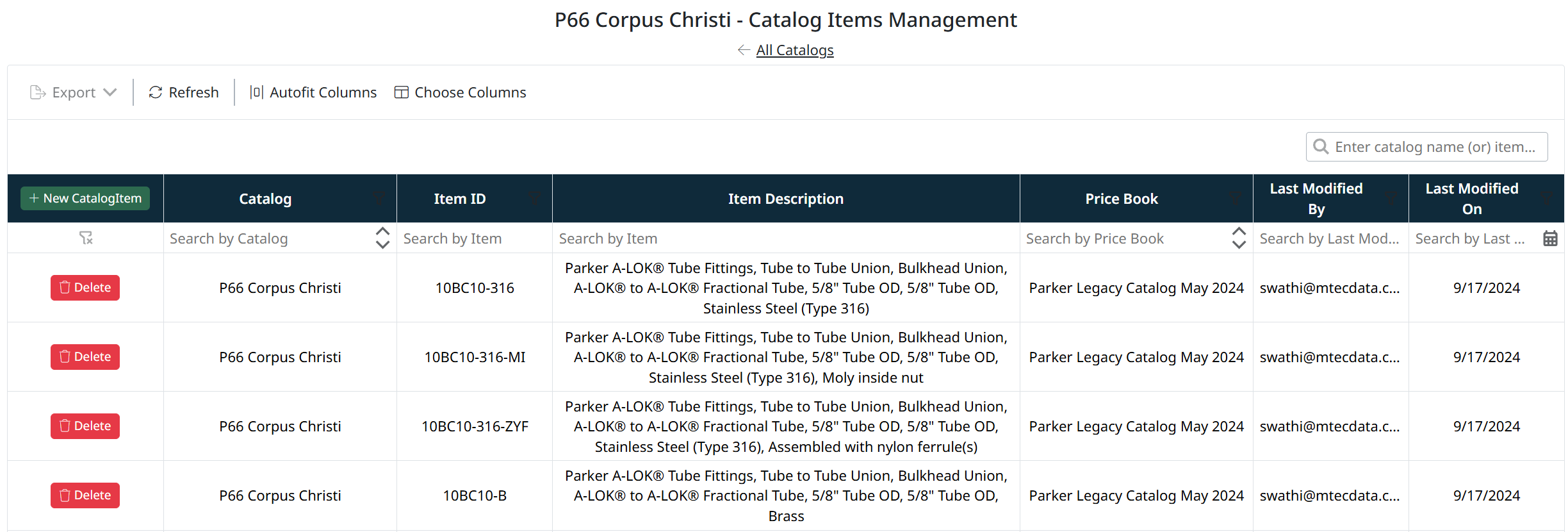
Select New Catalog Items

Select Items and Pricebook
Assigning a Price Book
- In the Price Book field, select the applicable price book
- The price book determines the pricing that will be applied to the item within this catalog
Saving the Catalog Item
- Click Save Catalog Item to add the item to the catalog
- Click Cancel to discard changes
Once saved, the item will appear in the catalog items list.
Managing Catalog Items
From the Catalog Items Management screen, you can:
- View all items assigned to the catalog
- Search and filter items using the column filters
- Remove items from the catalog using the Delete button
- Export the list of catalog items if required
Notes
- Only items that exist in the Items module can be added to a catalog
- Each catalog item must be associated with a price book
- The same item can exist in multiple catalogs with different pricing structures
Created with the Personal Edition of HelpNDoc: Full-featured EBook editor