Manage Catalogs

Catalog Management
The Catalog Management screen allows administrators to create and manage item catalogs. Catalogs are used to group items together so they can be assigned to customers, sites, contracts, or pricing structures.
Each catalog represents a curated set of items that can be exposed through the eCatalog & Drawings Online application.
Navigating to Catalogs
To access the Catalogs management screen:
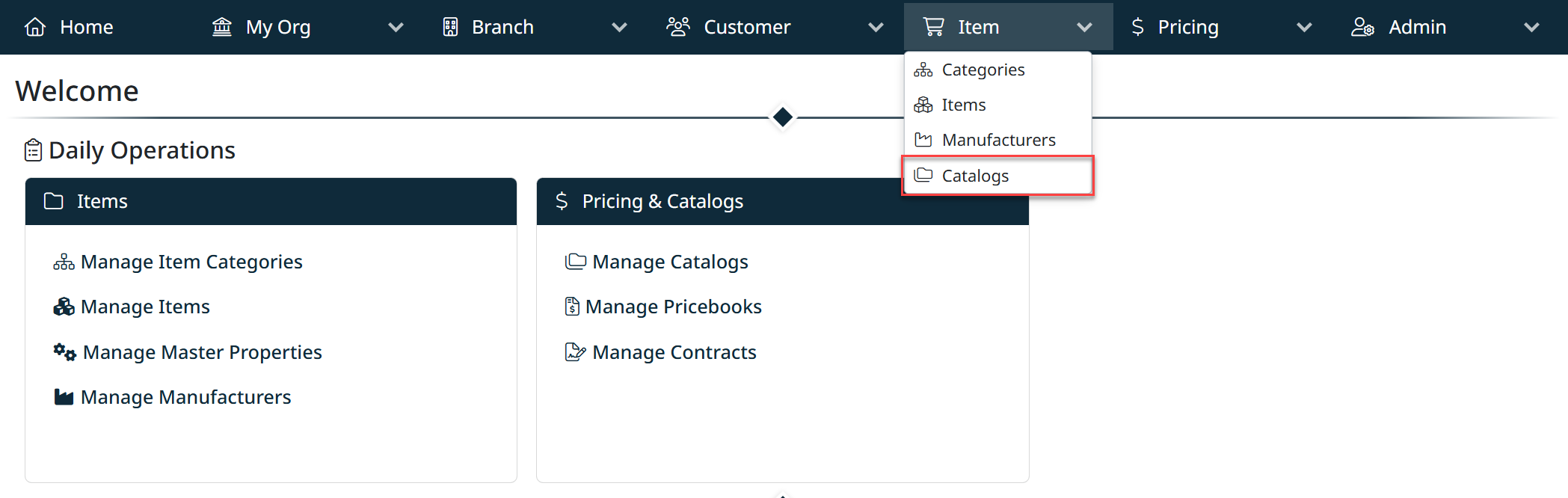
- From the top navigation bar, click on Item
- In the dropdown menu, select Catalogs
You will be directed to the Catalogs Management page, where you can create, view, and manage catalogs used to organize and present products to customers.
Notes
- The Item menu groups all product-related configuration, including categories, items, manufacturers, and catalogs
- Selecting Catalogs opens the central workspace for managing catalog structures and assignments
Catalogs Grid Overview
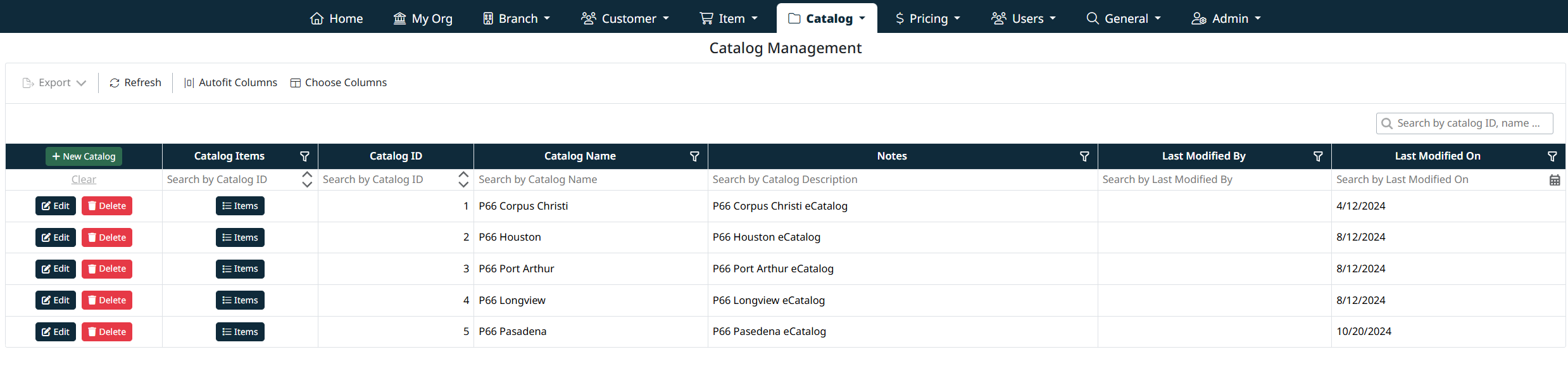
The Catalogs grid displays all configured catalogs in the system.
Grid Columns
Each row in the grid includes the following information:
- Catalog Items – Opens the list of items assigned to the catalog
- Catalog ID – The unique system-generated identifier for the catalog
- Catalog Name – The display name of the catalog
- Notes – Optional descriptive notes about the catalog
- Last Modified By – The user who last updated the catalog
- Last Modified On – The date the catalog was last modified
Grid Actions
Each catalog row includes the following actions:
- Edit – Modify the catalog name or notes
- Delete – Remove the catalog (confirmation required)
- Items – Manage the items assigned to the catalog
Standard grid features such as filtering, column selection, refresh, and export are also available.
Creating a New Catalog
To create a new catalog:
- Click + New Catalog at the top of the grid.
- Enter the required information:
- Catalog Name – A descriptive name for the catalog.
- Notes – Optional additional information or description.
- Click Save Catalog to create the catalog.
- Click Cancel to discard changes.
Once saved, the catalog becomes available for item assignment and pricing configuration.

Editing a Catalog
To edit an existing catalog:
- Click Edit next to the catalog you want to update.
- Update the Catalog Name and/or Notes.
- Click Save Catalog to apply changes.
- Click Cancel to exit without saving.
Edits take effect immediately after saving.

Deleting a Catalog
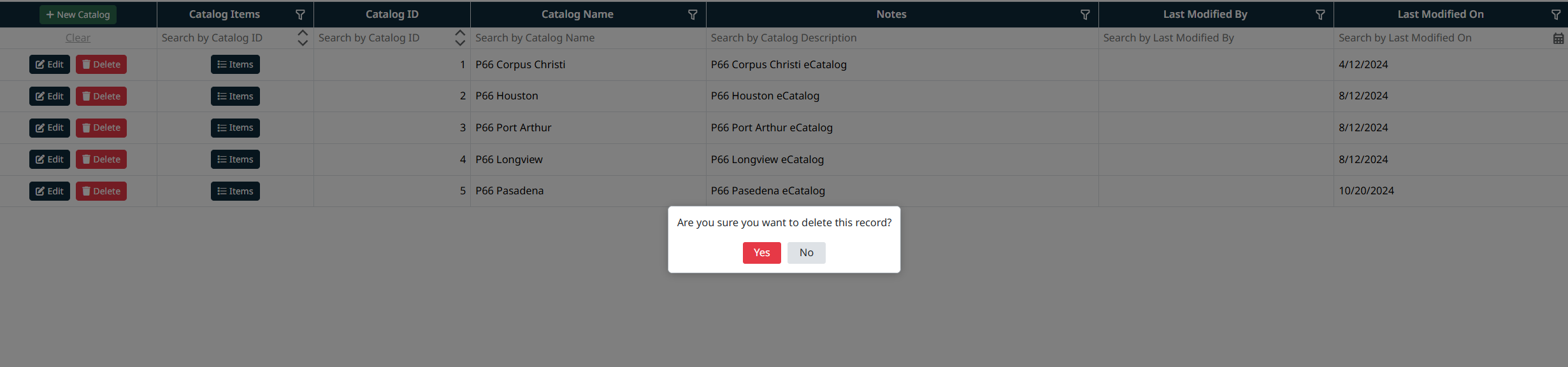
To delete a catalog:
- Click Delete next to the catalog.
- A confirmation dialog will appear.
- Click Yes to confirm deletion, or No to cancel.
Note: Catalogs that are actively used by customers, sites, or pricing configurations may be restricted from deletion depending on system rules.
Managing Catalog Items
Each catalog includes an Items button in the grid.
Clicking Items opens the catalog’s item list, where you can:
- Add items to the catalog
- Remove items from the catalog
- Review which items are available within that catalog
Catalog item management is essential for controlling which products appear in customer-facing catalogs and pricing structures.
Created with the Personal Edition of HelpNDoc: Easily create EPub books