Manage Users and Access

Manage Users and Access
Use this section to manage user accounts, control access to the Admin Portal, and assign permissions for your organization.
From here, administrators can add new users, enable or disable accounts, designate service accounts, and manage individual user access.
Accessing User Management
1. From the top navigation bar, click Users.
2. The Users screen will display a list of all users associated with your organization.
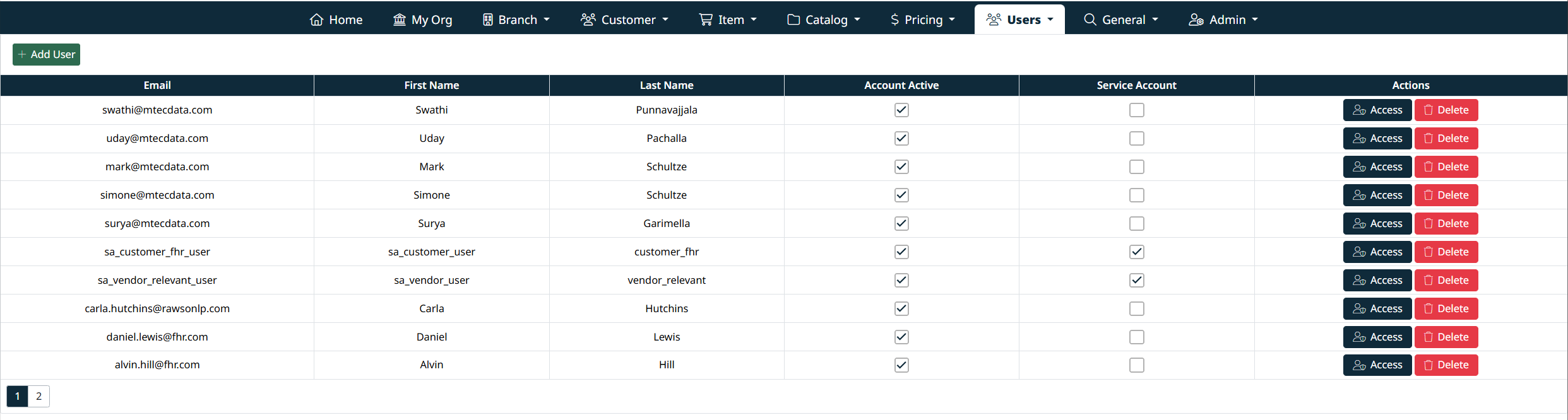
Users List Overview
The Users screen displays a grid containing the following information:
- Email – The user’s login email or service account name
- First Name / Last Name – User identification details
- Account Active – Indicates whether the user account is enabled
- Service Account – Identifies system or integration accounts
- Actions – Access and delete options for each user
Use pagination controls at the bottom of the screen to navigate through multiple pages of users.
Adding a New User
1. Click + Add User at the top left of the screen.
2. Enter the required information:
- First Name
- Last Name
3. (Optional) Select Service Account if the user is intended for system or integration use.
4. Click Save User to create the account, or Cancel to discard changes.
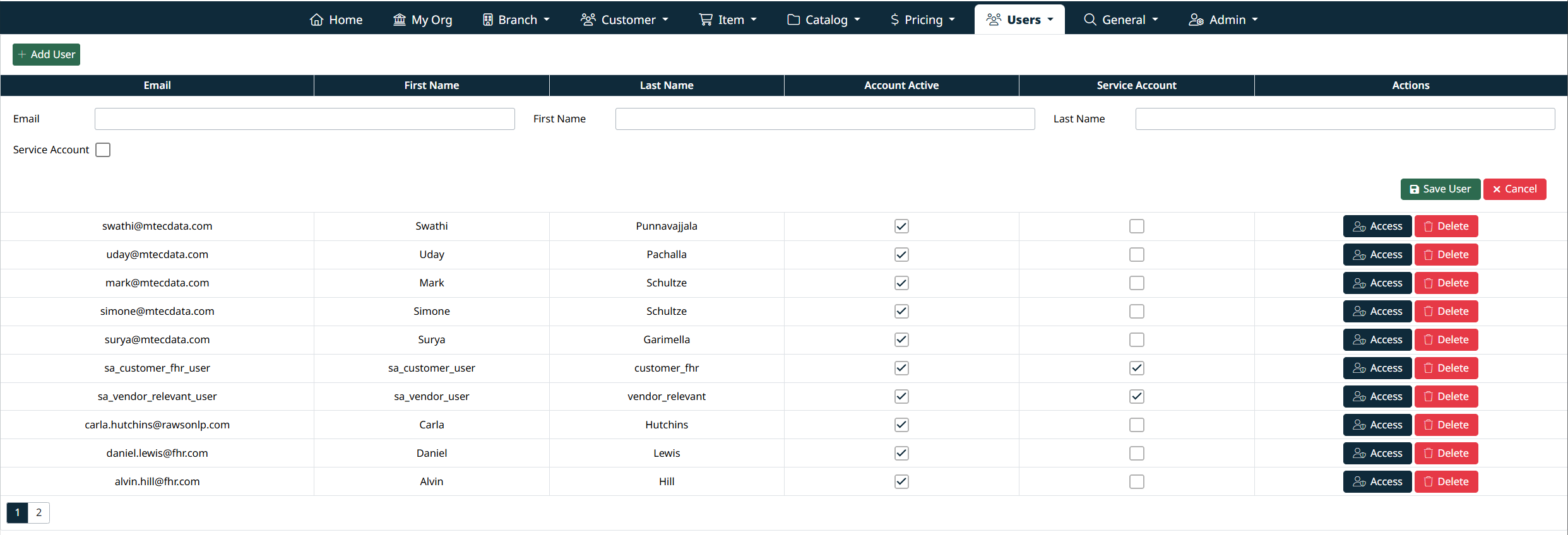
Managing User Access
Each user row includes an Access button.
1. Click Access next to a user to manage their permissions.
2. Configure the user’s access based on organizational roles and allowed features.
3. Save changes to apply updated access rights.
Access settings determine which areas of the Admin Portal the user can view and manage.
Activating or Deactivating Users
- Use the Account Active checkbox to enable or disable a user.
- Deactivated users will no longer be able to sign in but remain listed for audit and reactivation purposes.
Deleting a User
1. Click Delete next to the user you wish to remove.
2. Confirm the deletion when prompted.
Deleting a user permanently removes their account. This action cannot be undone.
Service Accounts
Service accounts are used for automated processes or integration's.
- These accounts do not represent individual users.
- They can be identified by the Service Account checkbox.
- Permissions should be carefully restricted to required system access only.
Best Practices
- Regularly review active users and permissions.
- Disable accounts for users who no longer require access.
- Use service accounts only when necessary for integration's.
- Follow the principle of least privilege when assigning access.
Created with the Personal Edition of HelpNDoc: Full-featured EPub generator