Manage Unit of Measure

Unit of Measures Management
The Unit of Measures Management screen is used to define and maintain the units of measure (UOM) that can be assigned to items throughout the system. Units of measure standardize how items are quantified (for example, Each, Pound, Liter) and ensure consistency across catalogs, pricing, and transactions.
Units of measure created here are available for selection when creating or editing items.
Accessing Unit of Measures Management
To access the Unit of Measures Management screen:
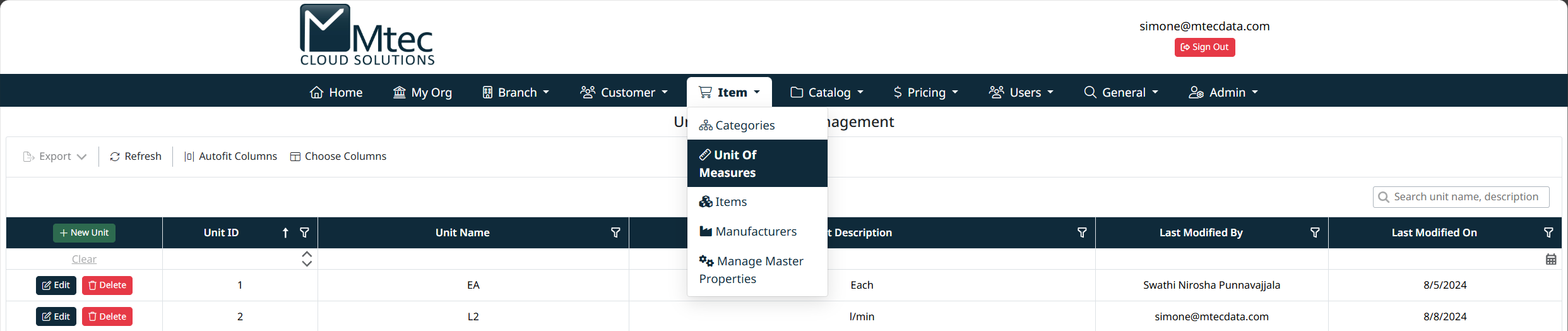
- From the top navigation bar, select Item.
- Click Unit of Measures.
The Unit of Measures Management screen will display a grid listing all existing units of measure.
Unit of Measures Grid Overview
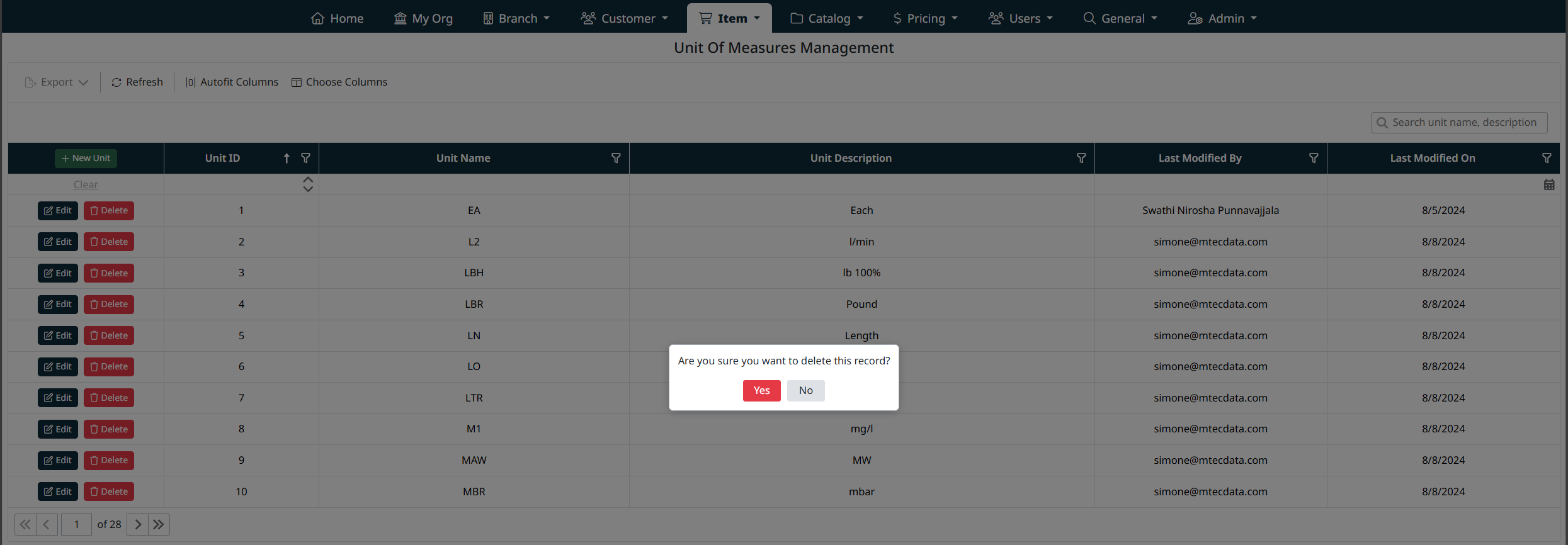
The grid displays all configured units of measure and includes the following information:
- Unit ID – System-generated identifier
- Unit Name – Short code for the unit (for example, EA, LB, LTR)
- Unit Description – Full descriptive name of the unit
- Last Modified By – User who last updated the record
- Last Modified On – Date of the most recent update
Each row also provides action buttons to Edit or Delete the unit.
For details on searching, filtering, sorting, exporting, and customizing grid columns, see Grid Navigation, Search, and Filtering
Creating a New Unit of Measure
To create a new unit of measure:
- Click + New Unit at the top of the grid.
- Enter the following information:
- Unit Name
A short, unique code representing the unit (for example, EA, KG, GAL). - Unit Description
A descriptive name explaining the unit (for example, Each, Kilogram, Gallon).
- Click Save Unit to create the unit.
The new unit will immediately appear in the grid and become available for item configuration.

Editing an Existing Unit of Measure
To edit an existing unit:
- Locate the unit in the grid.
- Click Edit in the corresponding row.
- Update the Unit Name and/or Unit Description as required.
- Click Save Unit to apply the changes, or Cancel to discard them.
Changes take effect immediately and apply wherever the unit is used.

Deleting a Unit of Measure
To delete a unit of measure:
- Locate the unit in the grid.
- Click Delete in the corresponding row.
- Confirm the deletion when prompted.
Note: Units of measure that are already assigned to items may be restricted from deletion to prevent data integrity issues.
Navigation Grids, Search and Filters
This screen uses a standard grid controls for searching, filtering, sorting, and managing records.
The grid provides the following tools:
- Column filters to narrow results by specific fields (such as IDs, names, notes, and modification details)
- Inline search fields below column headers for quick, column-specific filtering
- Global search bar for keyword-based searching across visible data
- Column sorting by clicking column headers
- Grid actions including export, refresh, auto-fit columns, and column visibility customization
For detailed instructions on using grid search, filters, and column controls, see Navigating Grids, Search, and Filters.
Best Practices
- Use clear and consistent unit names to avoid confusion during item setup.
- Avoid creating duplicate units with different abbreviations (for example, LB vs LBS).
- Review existing units before adding new ones to maintain standardization across the system.
Created with the Personal Edition of HelpNDoc: Elevate Your Documentation with HelpNDoc's Project Analyzer Features