Manage Branch Sites

Branch Site Relationships
The Branch Site Relationships page is used to link a vendor branch to a specific customer site. This relationship defines which branch services a customer location and is essential for enabling the correct catalog and pricing to be applied.
This step is completed after both branches and customers have been set up.
Accessing Branch Site Relationships
To access this page:
- Click Branch in the top navigation bar
- Select Branch Sites from the dropdown menu
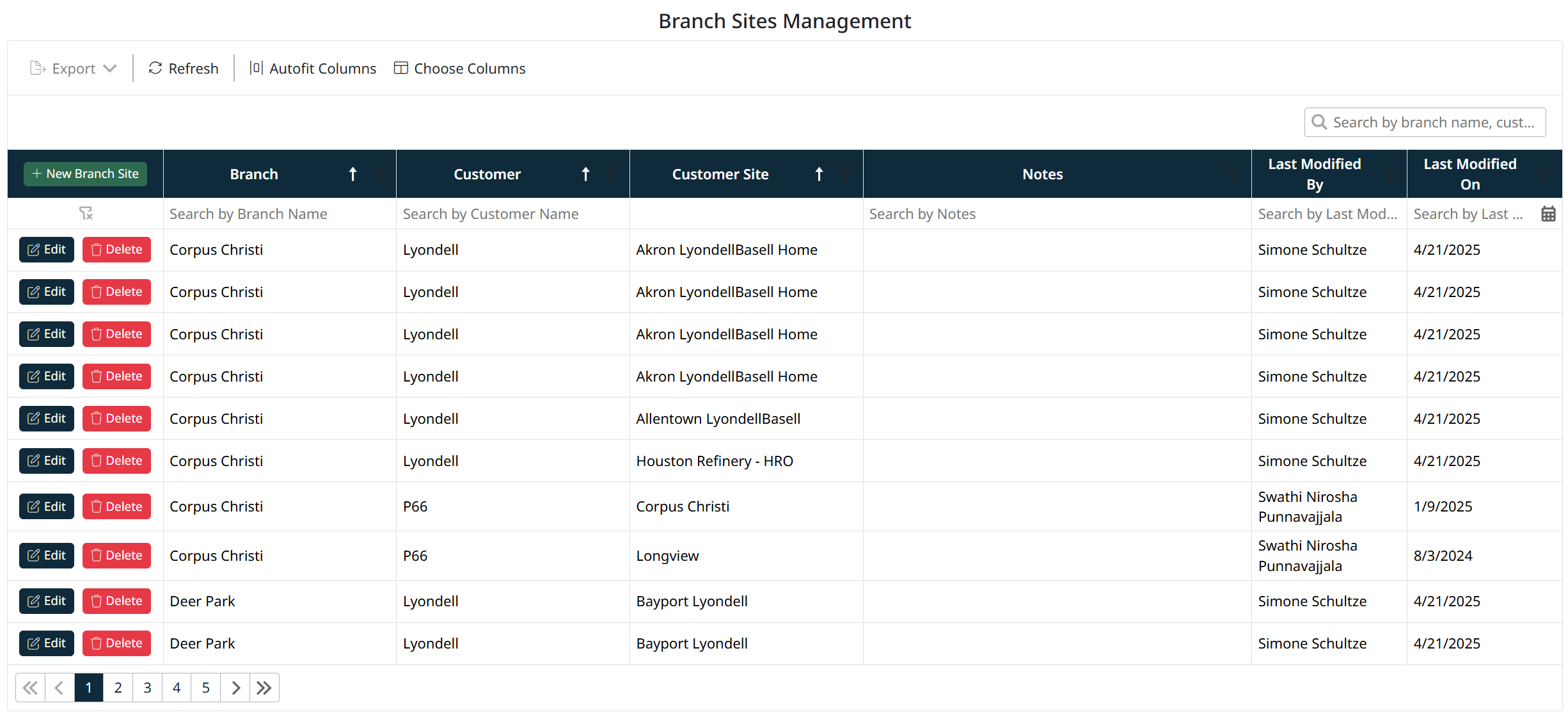
You will be directed to the Branch Sites Management screen.

Understanding Branch Site Relationships
A branch site relationship connects:
- A Vendor Branch → Your internal branch or location
- A Customer → The customer organization
- A Customer Site → A specific location belonging to that customer
This relationship determines how the system routes product availability, pricing, and ordering for that customer site.
Branch Site Relationships Grid
The grid displays all configured relationships.
Key Columns
- Branch – The vendor branch
- Customer – The associated customer
- Customer Site – The specific customer location
- Notes – Optional additional information
- Last Modified By / On – Audit details
Toolbar Options
- + New Branch Site – Create a new branch-to-customer-site relationship
- Export – Export the list
- Refresh – Reload the data
- Autofit Columns – Adjust column widths
- Choose Columns – Show or hide columns
Creating a Branch Site Relationship
To create a new relationship:
- Click + New Branch Site
- Select the following:
- Branch – The vendor branch
- Customer – The customer
- Customer Site – The specific site for that customer
- Enter Notes if required (optional)
- Click Save to create the relationship
- Click Cancel to discard
Once saved, the relationship will appear in the grid.

Editing a Branch Site Relationship
To modify an existing relationship:
- Locate the relationship in the grid
- Click Edit
- Update the required fields (branch, customer, site, or notes)
- Click Save to apply changes
- Click Cancel to discard changes

Deleting a Branch Site Relationship
To remove a relationship:
- Locate the relationship in the grid
- Click Delete
- Confirm the deletion when prompted
Using the Grid
You can:
- Search and filter relationships using the column filters
- Sort columns to quickly find specific records
- Navigate through pages using the pagination controls
Notes
- A valid relationship requires that both the branch and customer site already exist
- Multiple customer sites can be linked to the same branch
- These relationships are critical for ensuring the correct catalogs and pricing are applied to each customer site
Created with the Personal Edition of HelpNDoc: Free PDF documentation generator