Go to My Organization

My Organization
Use this page to view and manage your organization’s core details. These settings define how your company is identified throughout the application and are used across customer, order, and EDI workflows.
Organization Details
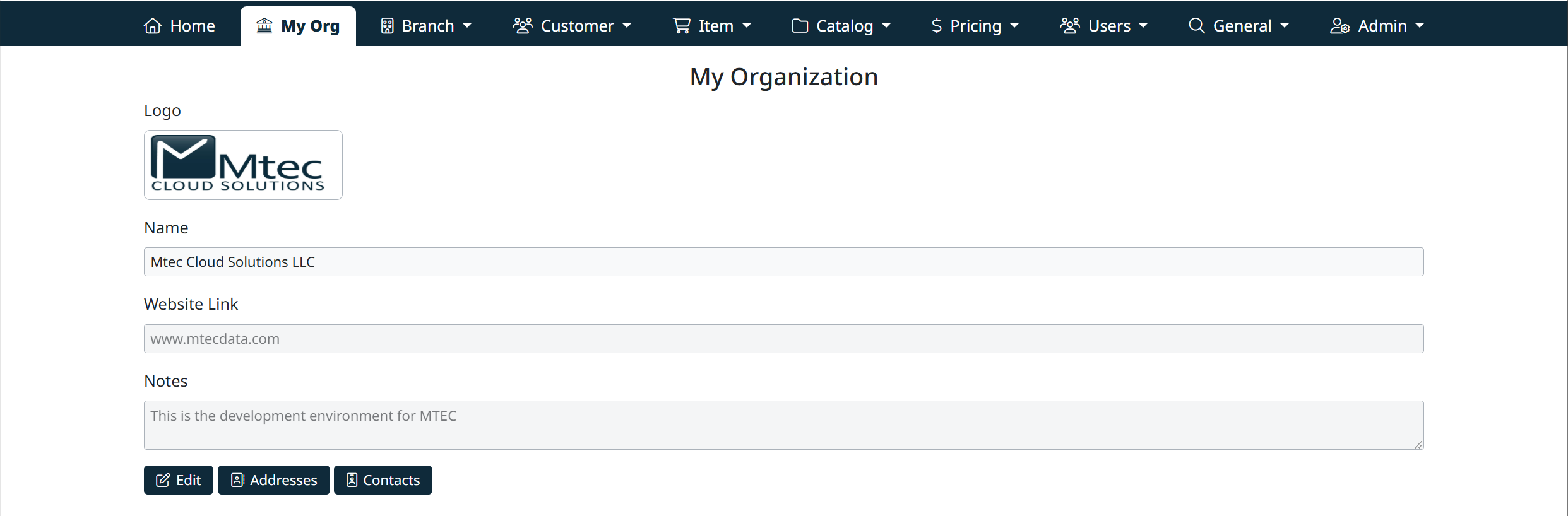
The My Organization page displays your organization’s primary information:
- Logo
Upload or update your company logo. This logo is used throughout the application where organizational branding is displayed. - Name
The official name of your organization as it appears across the system. - Website Link
Your organization’s website URL for reference and external linking. - Notes
Internal notes related to your organization, such as environment details or internal identifiers. These notes are not customer-facing.
Available Actions
- Edit
Enable editing mode to update organization details, including name, website link, notes, and logo. - Addresses
Manage the addresses associated with your organization. These addresses may be used for billing, shipping, or reference purposes throughout the application. - Contacts
Manage organization-level contacts, including key points of contact used for communication and notifications.
Editing Organization Details
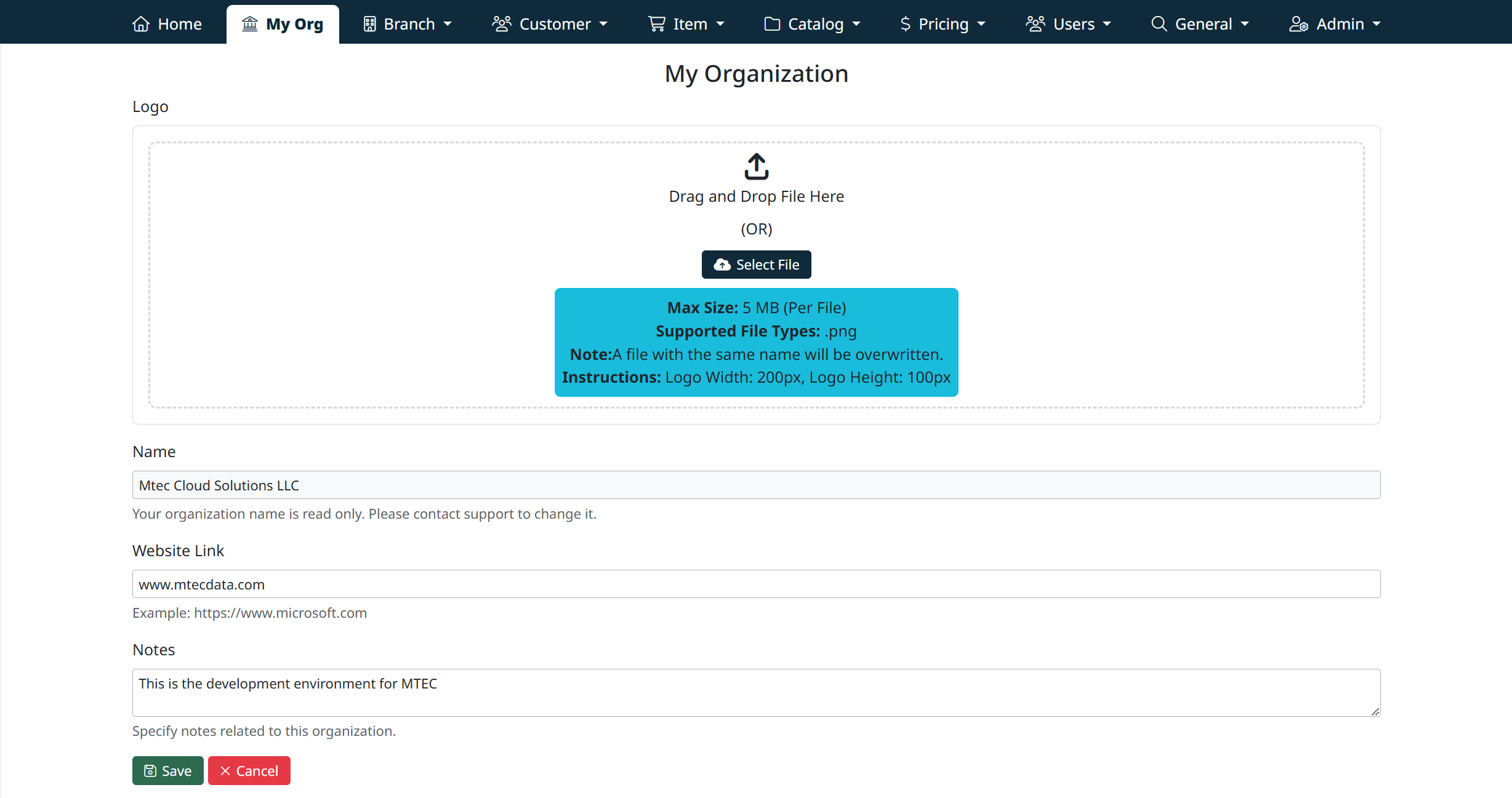
Use this screen to update your organization’s core details, including name, website information, and internal notes.
Access
Navigate to My Org from the top navigation bar, then select Edit.
Editable Fields
The following fields can be updated when the page is in edit mode:
- Logo
Upload or replace your organization’s logo. This logo is used throughout the portal where organizational branding is displayed. - Name
The official name of your organization. - Website Link
Your organization’s public website URL. - Notes
Internal notes related to the organization. This field is for reference purposes only and is not visible to external users.
Saving Changes
After making updates:
- Review all entered information for accuracy.
- Select Save to apply your changes.
Your updates will take effect immediately.
Additional Management Options
From the My Organization screen, you can also manage related information:
- Addresses
Maintain organizational address records. - Contacts
Manage contact details associated with the organization.
These options are available via the buttons at the bottom of the page.
Managing Addresses and Contacts
At the bottom of the screen, additional options allow you to manage related data:
- Addresses → Maintain business addresses associated with your organization (billing, shipping, headquarters, etc.).
- Contacts → Add or update contact persons, including names, roles, and communication details.
Best Practices
- Keep your organization name and website link up to date, as these may appear in vendor- or customer-facing areas.
- Use the Notes field for operational details or reminders visible to other admin users.
- Ensure at least one contact person is always up to date for support and customer communication.
Troubleshooting
- Unable to save changes? Ensure all mandatory fields are completed before saving.
- Logo not displaying? Confirm the image file meets size and format requirements (e.g., JPG or PNG).
- Changes not visible to others? Log out and back in, or clear your browser cache.
Managing Organization Contacts
Use this screen to add, edit, and maintain contact information associated with your organization. Contacts are used throughout the system for communication, notifications, and reference purposes.
Access
- From the top navigation bar, select My Org.
- On the My Organization page, select Contacts.
The Editing Contacts for Vendor screen will display, showing all existing contacts for the organization.
Contact Fields
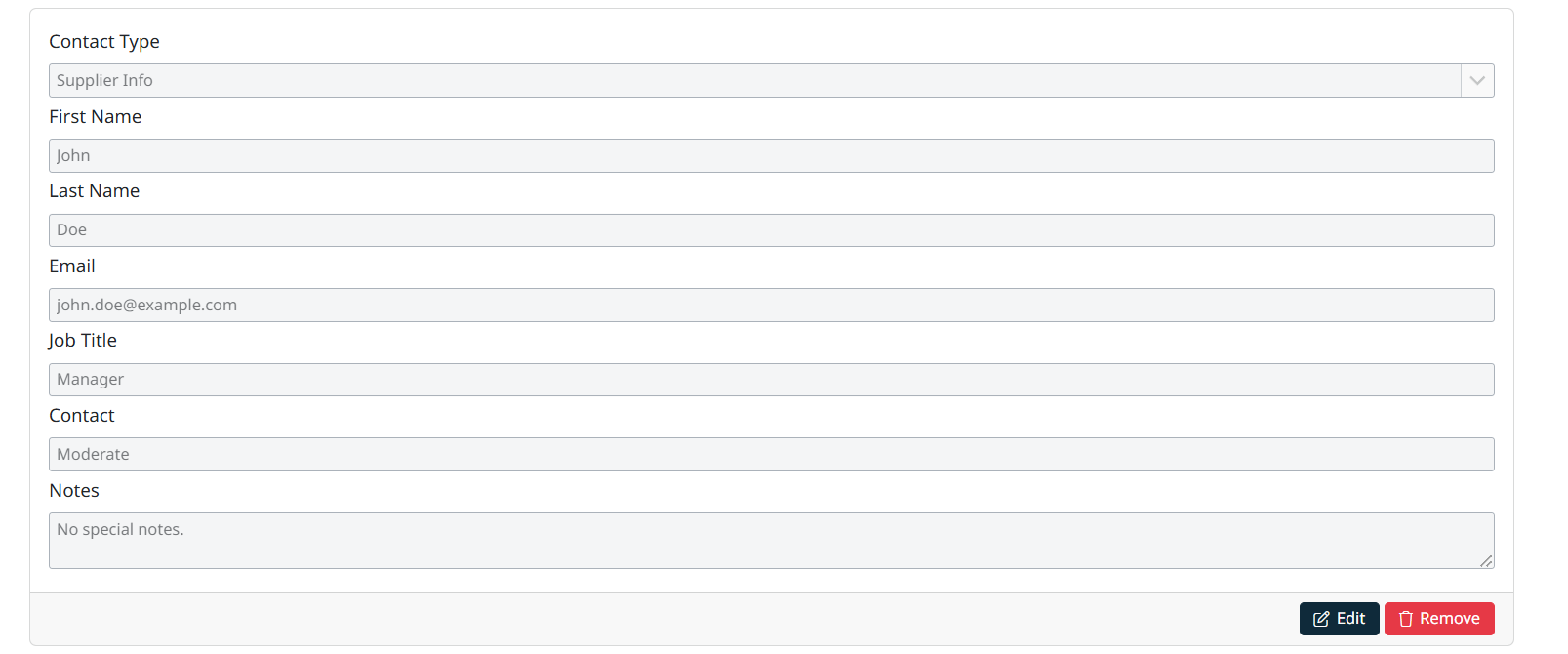
Each contact record includes the following fields:
- Contact Type
Select the type of contact (for example, Supplier Info, Sales, Billing, or Support).
Contact types are managed under General Management.
- First Name
The contact’s first name.
- Last Name
The contact’s last name.
- Email
The primary email address for the contact. This may be used for notifications or correspondence.
- Job Title
The contact’s role or position within the organization.
- Contact
Additional contact information such as phone number or priority level, depending on configuration.
- Notes
Optional internal notes related to the contact. These notes are for reference purposes only.
Editing a Contact
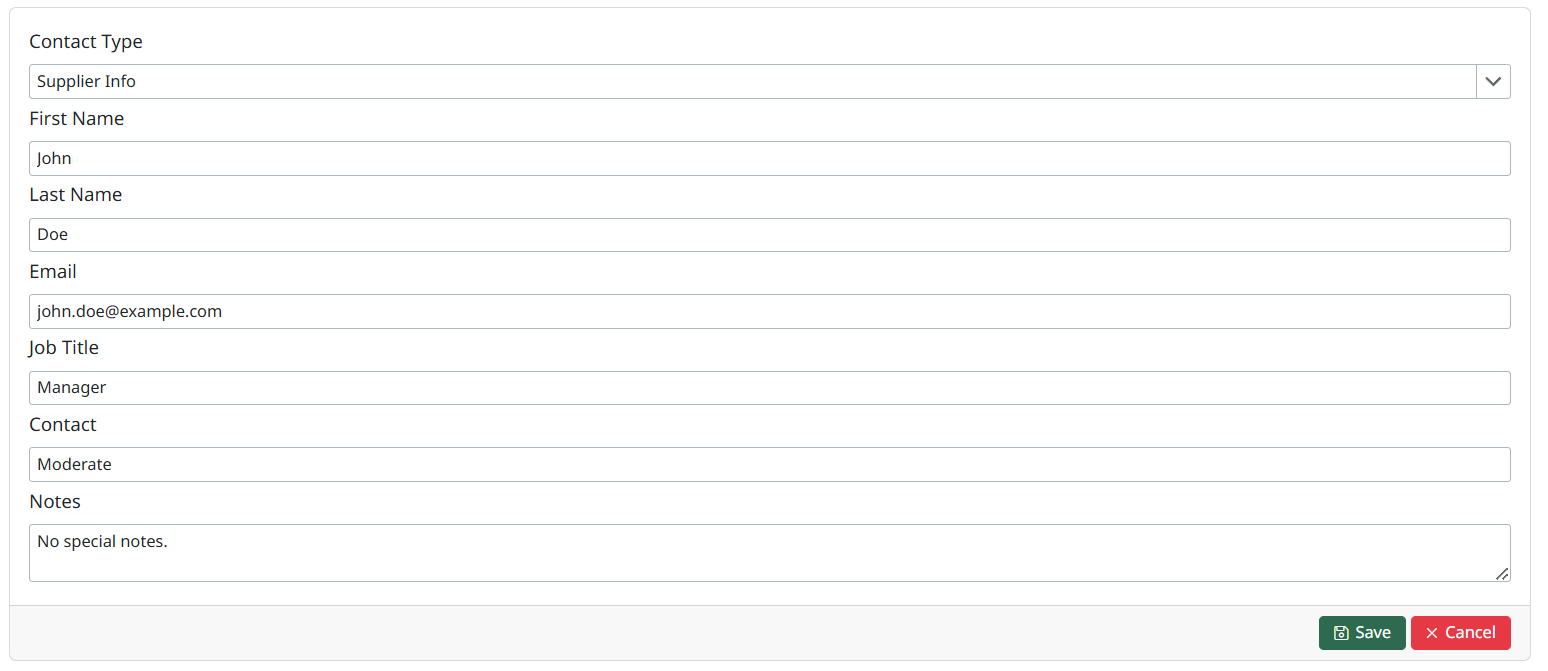
To update an existing contact:
- Locate the contact you want to update.
- Select Edit.
- Modify the required fields.
- Save your changes to apply the updates.
Changes take effect immediately after saving.
Created with the Personal Edition of HelpNDoc: Experience the Power and Ease of Use of a Help Authoring Tool